Contents
- Quick start — your first invoice in 5 steps
- Profile — company data, bank & QR code, tax data
- Invoices, quotes, credit notes & refunds
- Dashboard — income & expenses, due invoices, exports & reports
- Invoice defaults
- Language, currency & country code
- Reports & accounting exports
- Dunning (payment reminders)
- Message & invoice templates
- Notifications & storage
- Security & backup
- Expenses (Ausgaben)
- Customers (Kunden)
- FAQ
★ Quick start — your first invoice in 5 steps
New to InvoYX? Follow these five steps and you'll have your first invoice ready in a few minutes.
- Install InvoYX
Download from Google Play or the App Store and open the app. No account or internet connection required.
- Enter your company details
Go to Profile → Company data. Add your name, address, phone, email and logo — they appear on every invoice.
- Add your bank details
Go to Profile → Bank details and enter your IBAN. InvoYX adds a payment QR code to every invoice automatically.
- Set your tax numbers
Go to Profile → Tax data and enter your tax number and VAT ID, so invoices are tax-compliant.
- Create & send your invoice
Tap New Invoice, add a customer and line items, then share the ZUGFeRD PDF by email or WhatsApp.
💡 Tip: explore the full feature list or read the guides on ZUGFeRD, QR payments and more.
1 Profile
1.1 Company data
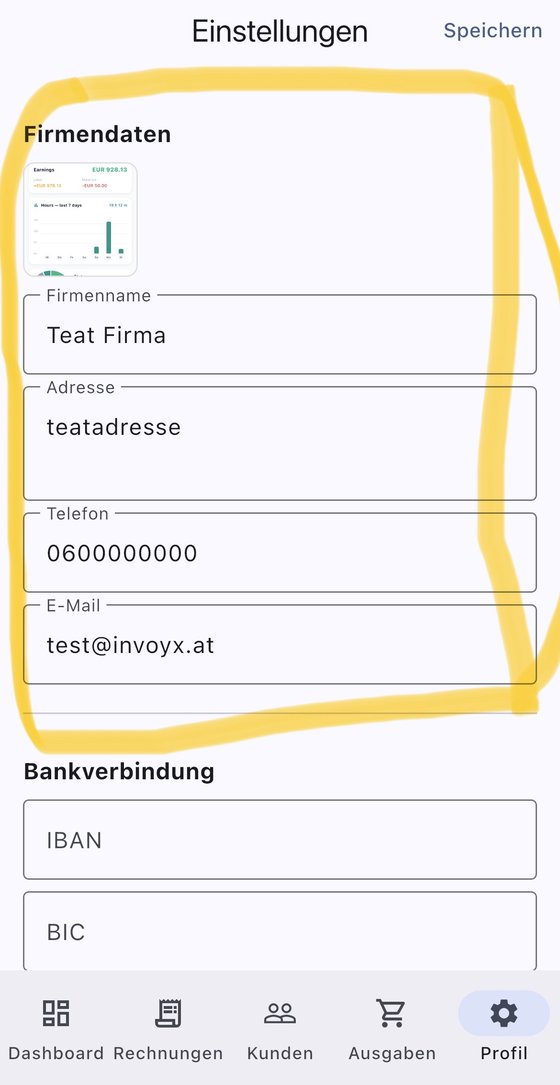
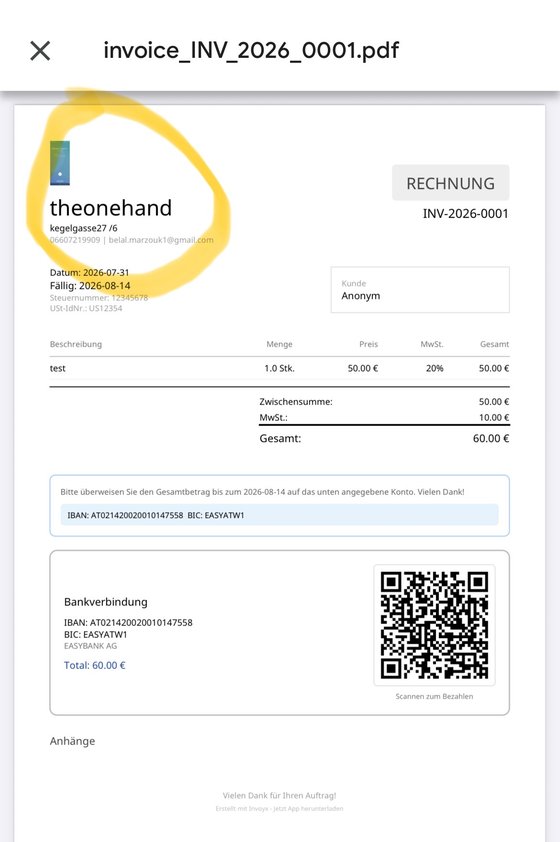
This is the information printed on every invoice you create. Your logo appears in the top-left corner; your company name, address, phone and email appear below it. Fill this in once and every invoice is automatically branded and complete.
1.2 Bank details
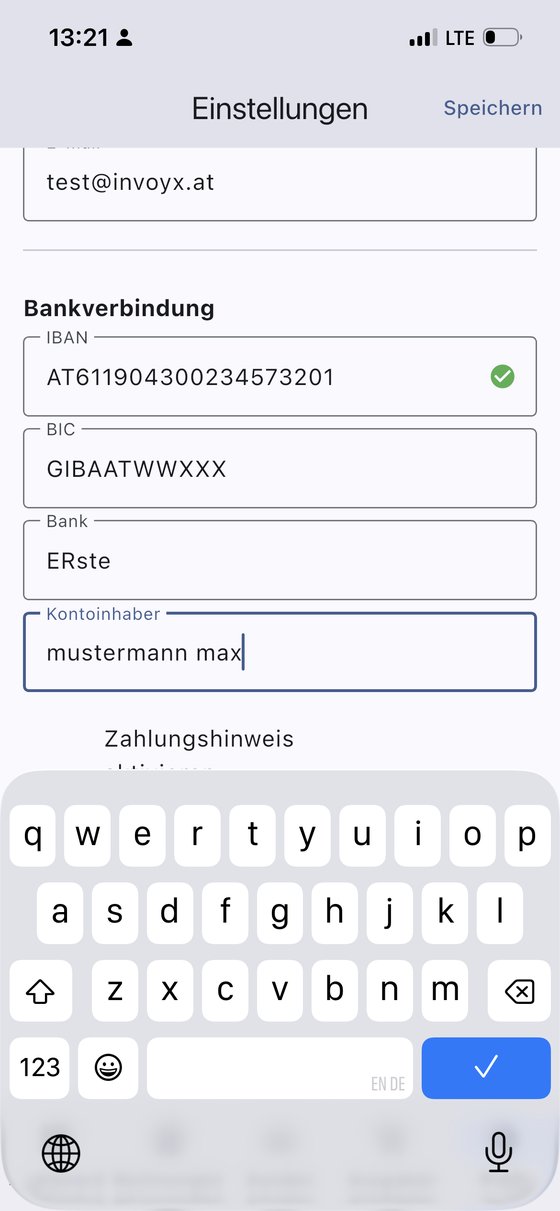
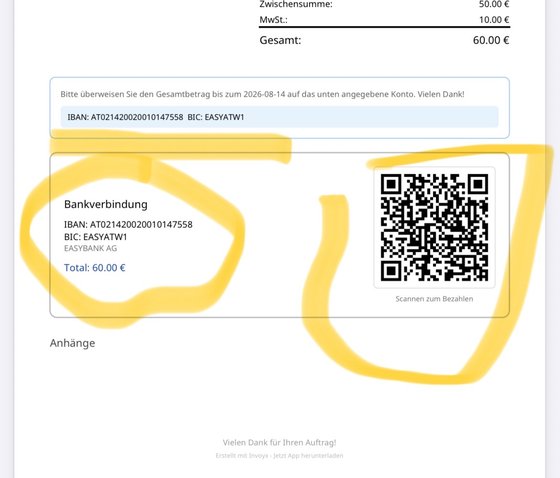
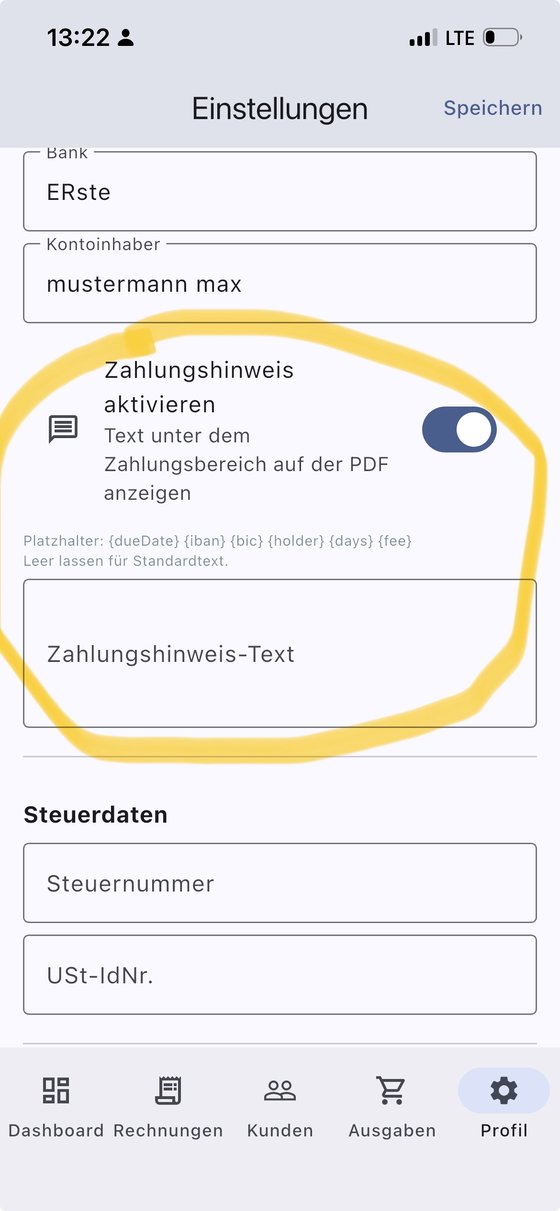
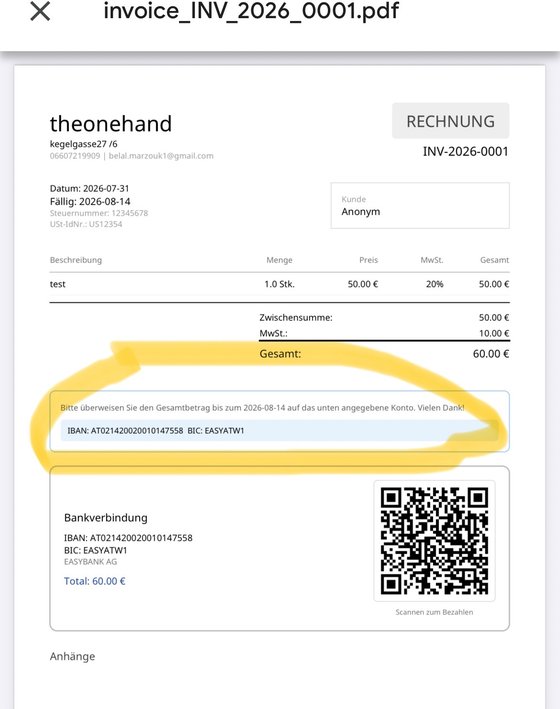
Your bank details make it easy for customers to pay: InvoYX generates a payment QR code on every invoice directly from your IBAN, so customers can pay with a single scan. The IBAN is checked automatically so you can't mistype it. You enter three things: your IBAN, the BIC, the bank name and the account holder.
Payment note — this is the payment instructions printed on the invoice. It is pre-filled automatically, but you can customize it with placeholders if you have special requirements:
{dueDate} {iban} {accountHolder} {days} (days remaining until payment is due) {fee}
1.3 Tax data
Your tax data is used in invoice calculations, the PDF and e-invoice output, tax exports and reports. Enter it once and every document is tax-compliant.
- Tax number — the tax number you received from your tax office (in Germany the format is e.g. 12/345/67890). It identifies you to the tax authorities. InvoYX prints it on your invoices and includes it in ZUGFeRD e-invoices.
- VAT ID (USt-IdNr.) — your EU-wide VAT identification number (e.g. DE123456789). You need it for cross-border business within the EU and for validating your customers' VAT IDs. InvoYX prints it on invoices and includes it in ZUGFeRD e-invoices.
2 Invoices, quotes, credit notes & refunds
InvoYX handles every document a tradesperson needs in one editor: invoices, quotes (Angebote), credit notes & vouchers (Gutschriften) and refunds (Rückzahlungen). This section covers how to create and manage each one.
2.1 Three ways to create an invoice
When you start a new invoice you choose how the customer is handled:
- Anonymous invoice with a name
If the customer doesn't want to be saved in your customer list but still wants their name on the invoice, register the invoice as anonymous and add a name and address.
- Fully anonymous invoice
Select an empty or anonymous customer and leave name and address blank — no personal data appears on the document.
- Invoice for a saved customer
If the invoice should appear in the customer history, select the customer in the customer field. Start typing and InvoYX suggests matching names — tap to select.
2.2 Invoice status & send status
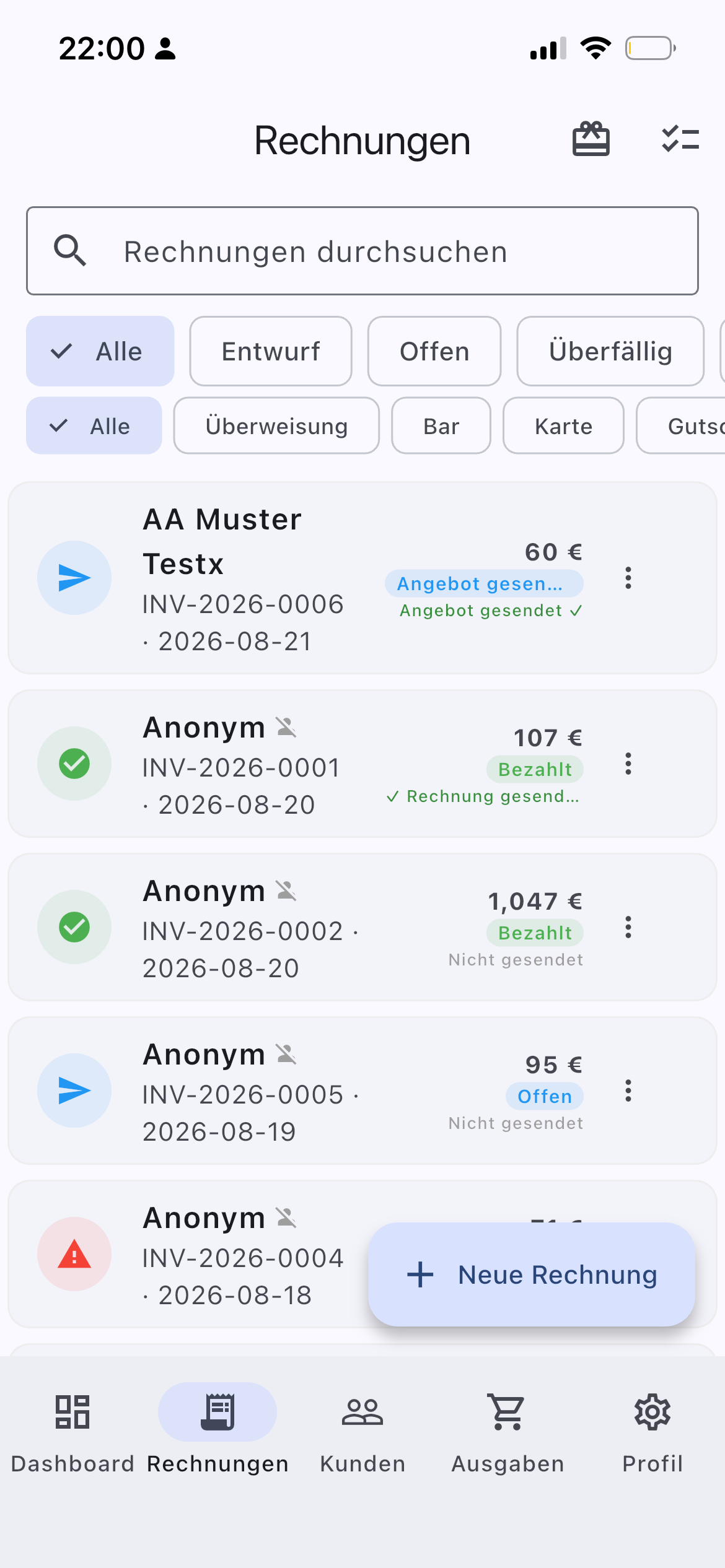
A new invoice gets the status open and sent when you close it with Save & send. If you tap Mark as draft or just Save, it stays a draft.
There are three send statuses:
- Invoice sent — only the invoice was sent.
- Confirmation sent — the payment confirmation was sent.
- Both sent — invoice and confirmation were both sent.
2.3 Line items, templates & discounts
Add as many line items as you need. If an invoice was created as a template, pick it from the Template dropdown; if you don't choose one you're building an individual invoice. You can apply a discount either as a percentage or a fixed amount.
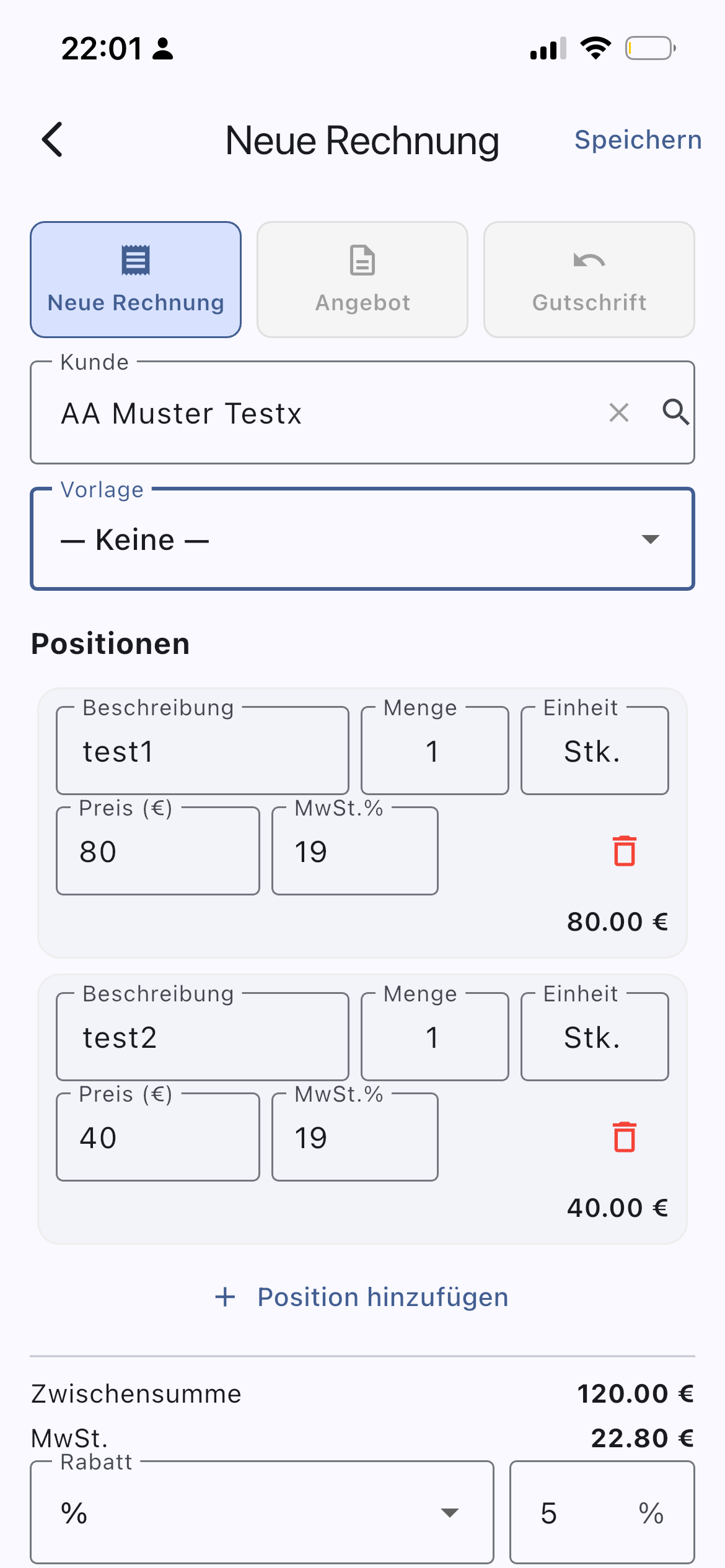
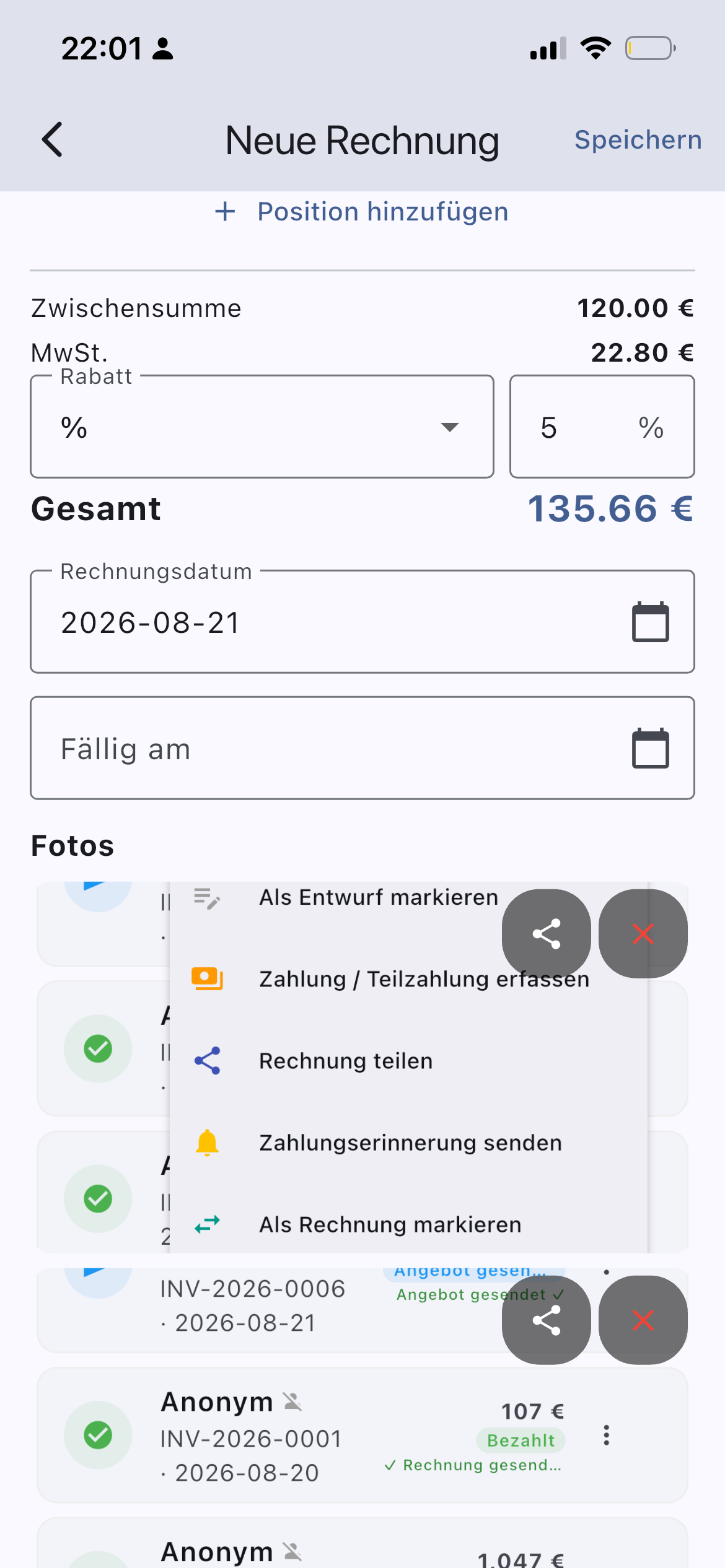
2.4 Dates, voucher redemption & language
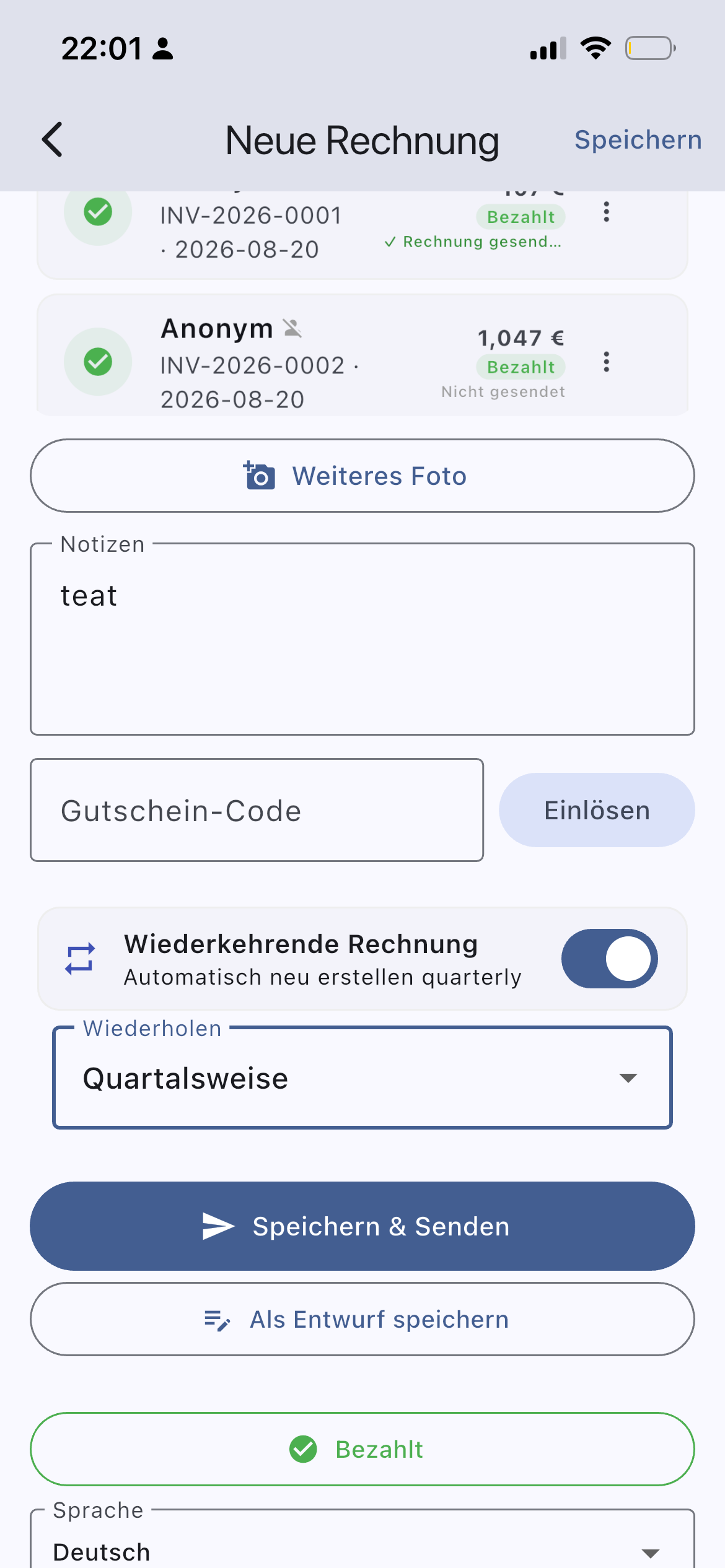
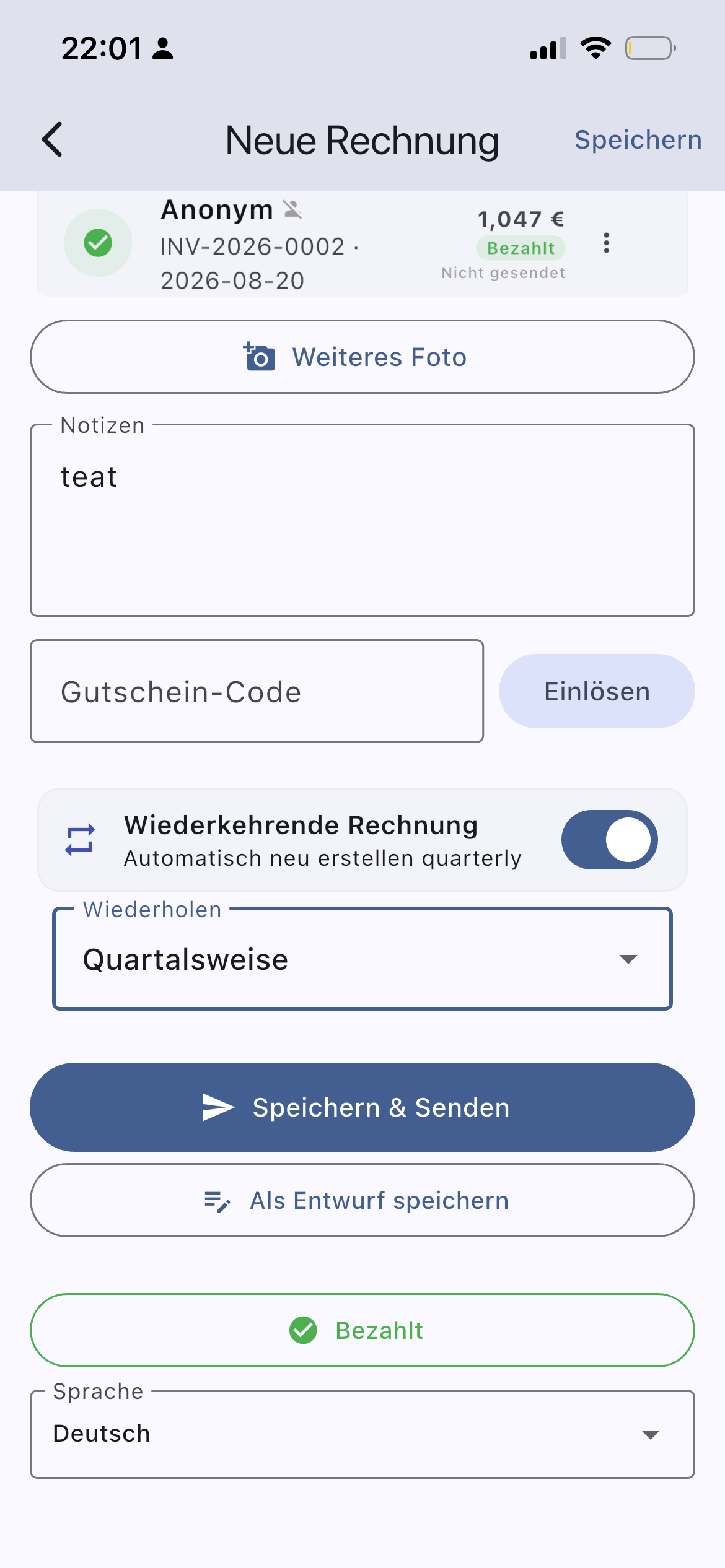
Set the invoice date and the due date directly in the invoice, and redeem a voucher (Gutschein) there too. Scroll down and you'll find the document language — you can send invoices and confirmations in a specific language, independently of whatever you configured in your profile.
💡 Pro tip: set the app language to your own language in your profile and the document language to your customer's country — a core InvoYX strength.
2.5 Sending & sharing the PDF
After Save & send, tap Share PDF — the invoice is created and can be sent by email, WhatsApp, Telegram, Signal or any app on your phone. The email text is filled in automatically and the invoice PDF is attached.
2.6 Marking as paid
Tap the Paid button and you get two options: partially paid (enter the amount received — the invoice keeps the status partially paid) or fully paid (choose the payment method and it's saved with the status paid).
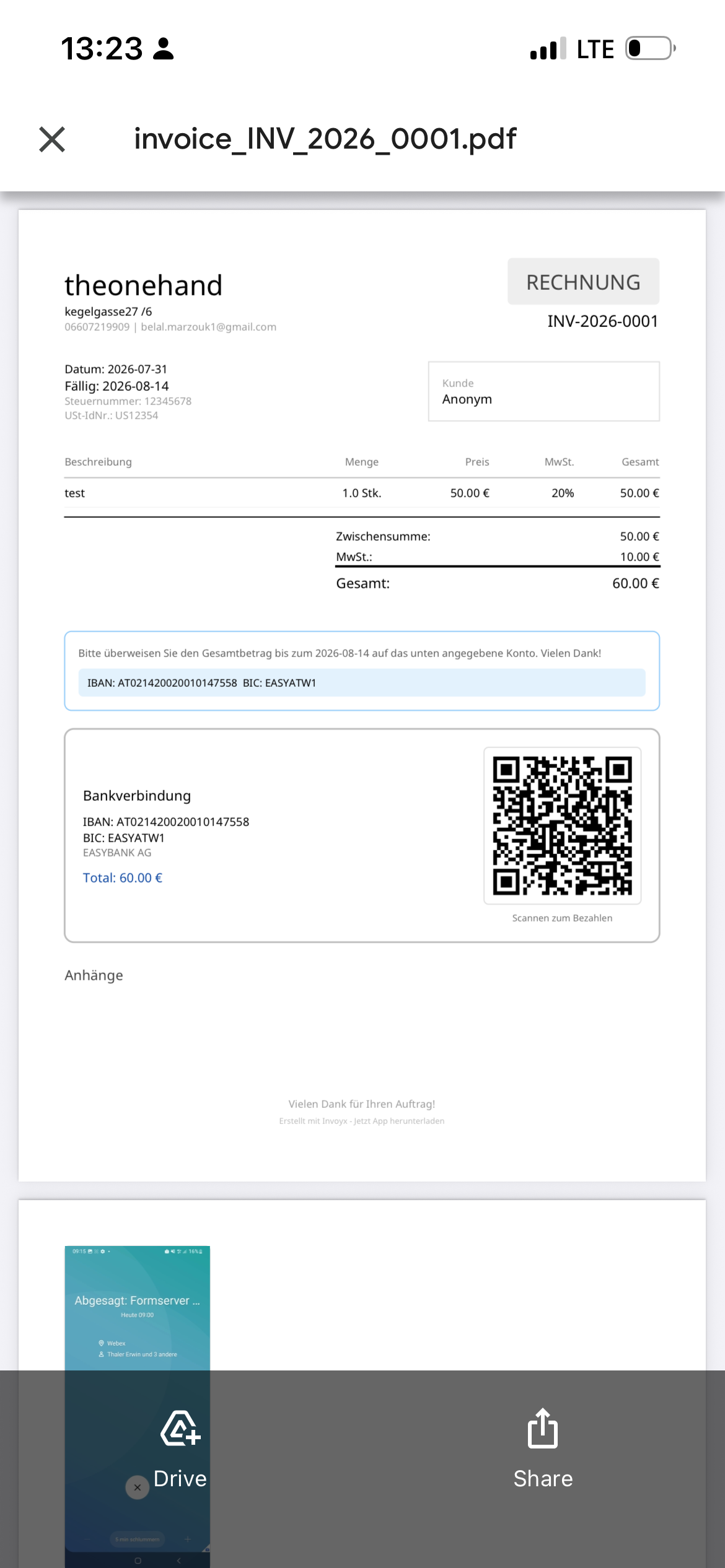
2.7 Recurring invoices
If you have a recurring job with a customer, activate recurring invoices for that customer — InvoYX then creates an invoice every week, month, quarter or year automatically.
2.8 Photos on the invoice
Attach up to 10 photos per invoice. Every photo is included in the generated PDF and sent to your customer.
2.9 Digital signature
Every generated PDF is digitally signed. The very first PDF created with the app takes a little longer — after that it's fast.
2.10 Filtering, status changes & exports
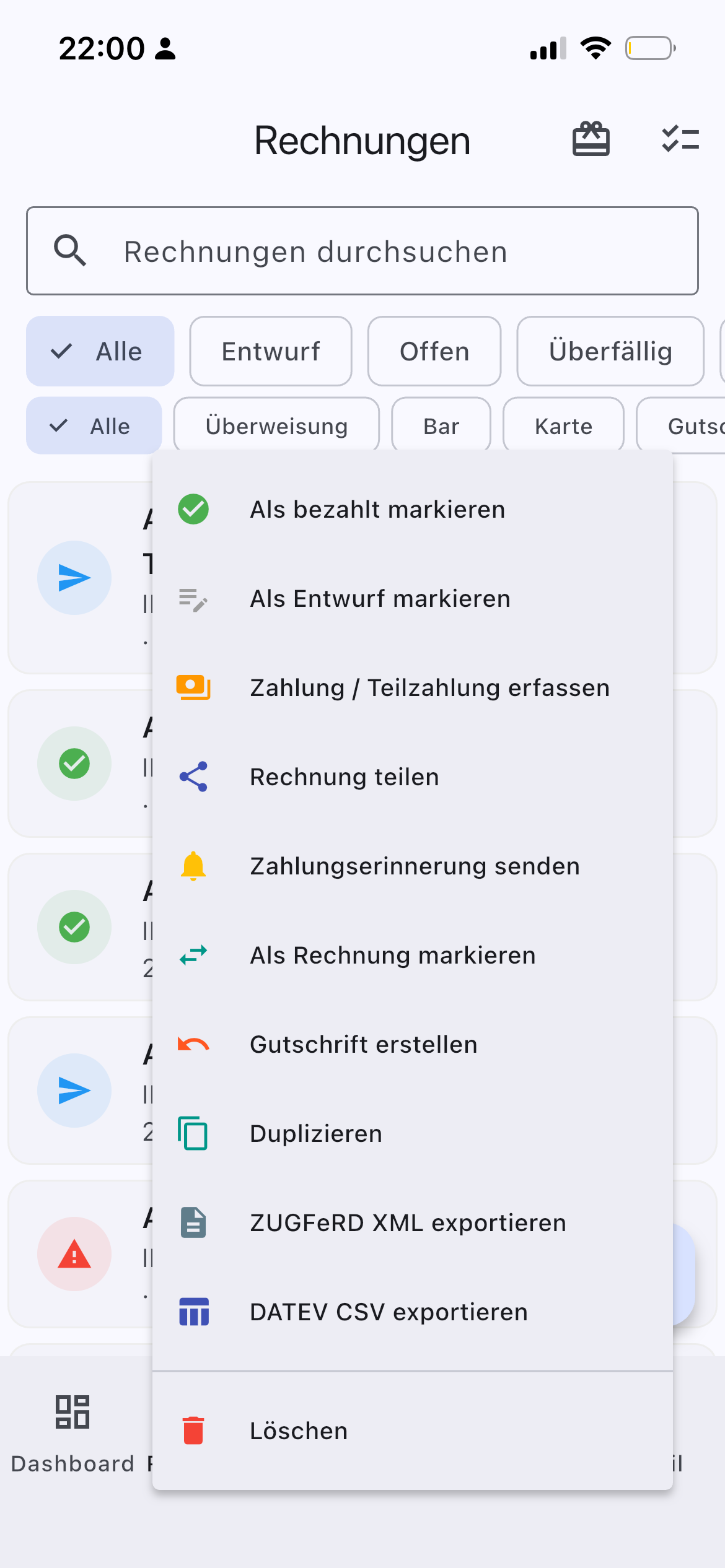
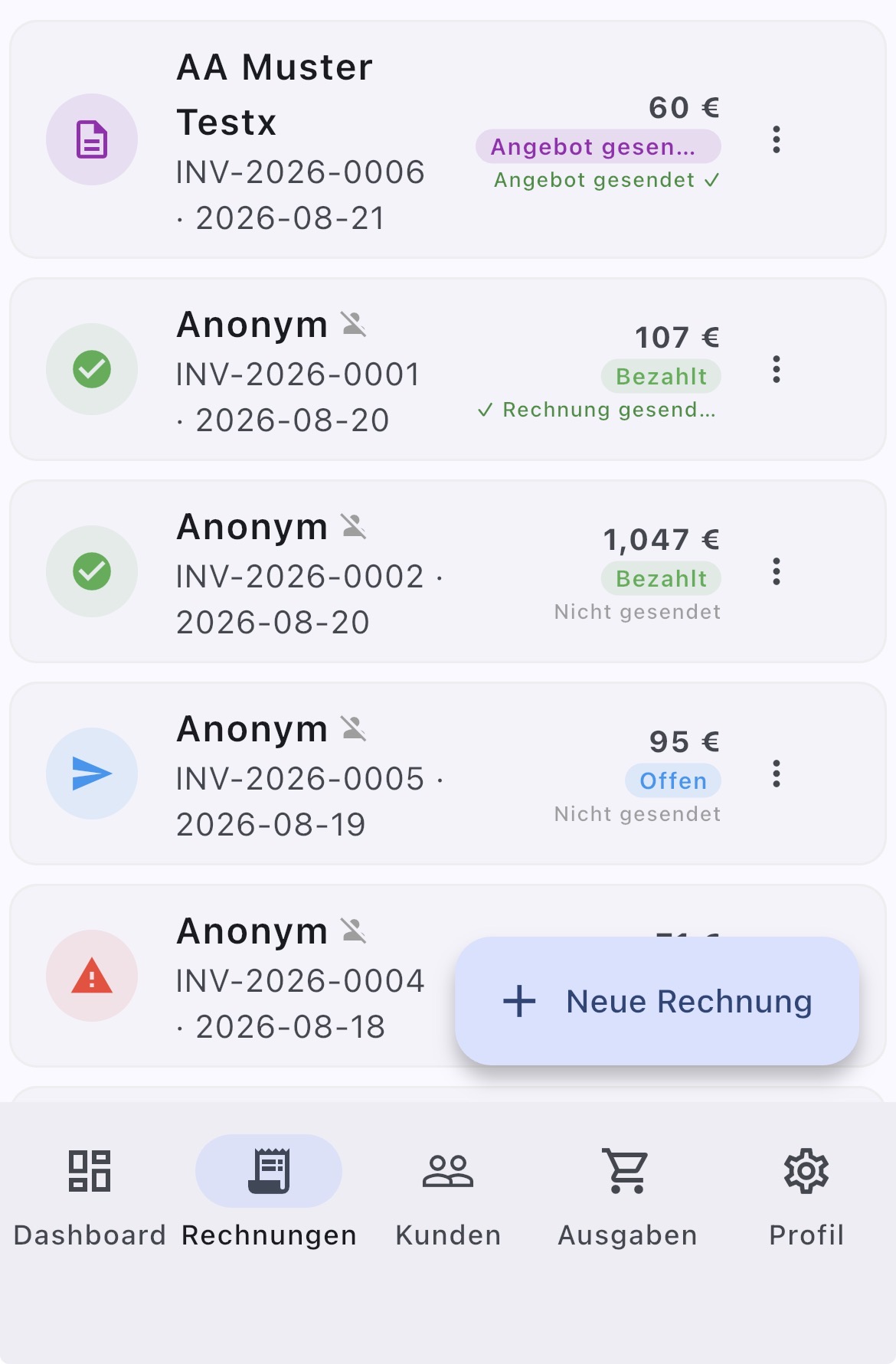
In the menu you can filter by payment method (card, cash or bank transfer), search by name or filter by status. From the three-dot menu you can mark an invoice as paid or partially paid, change its status, or create and send a new invoice. You can also send a payment-approval XML, ZUGFeRD, DATEV or a payment reminder.
2.11 Quotes (Angebote)
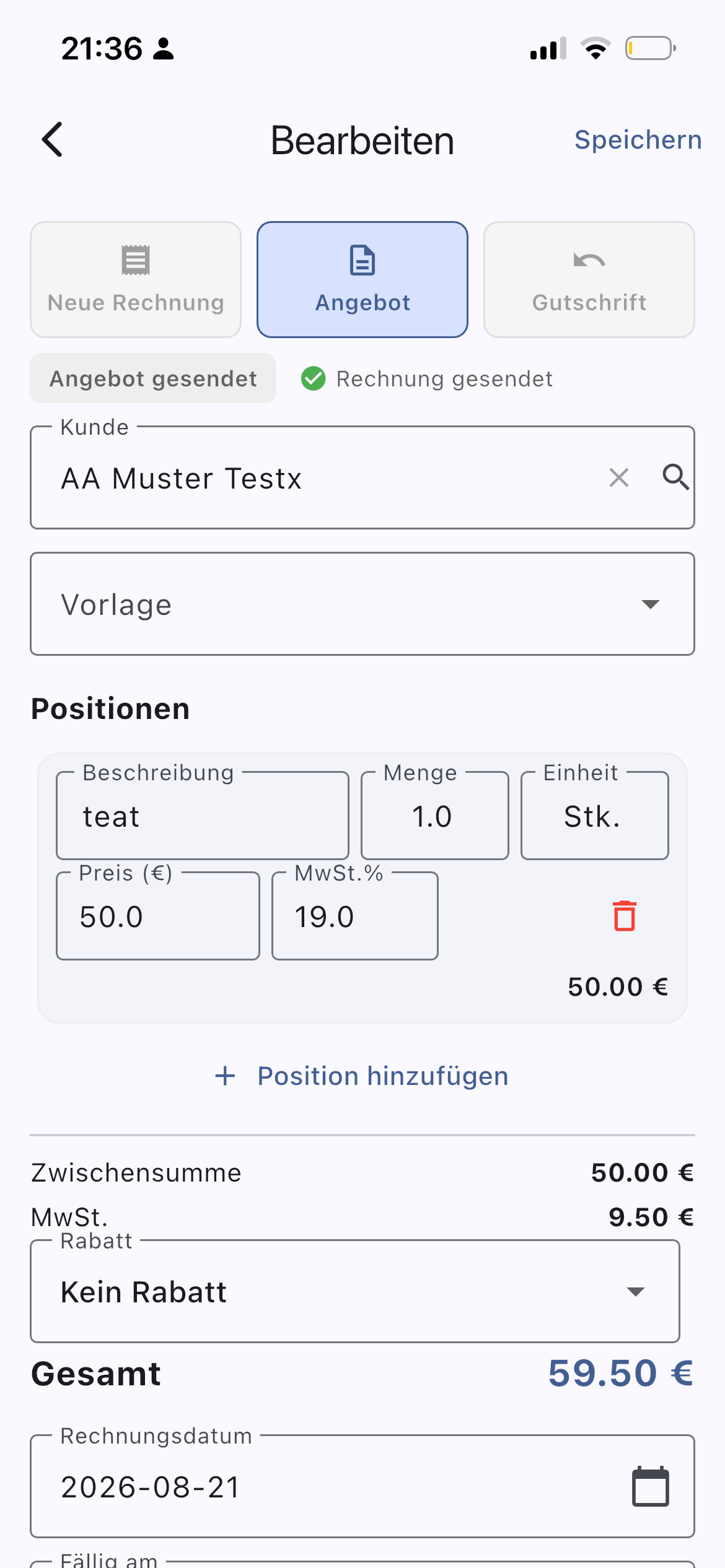
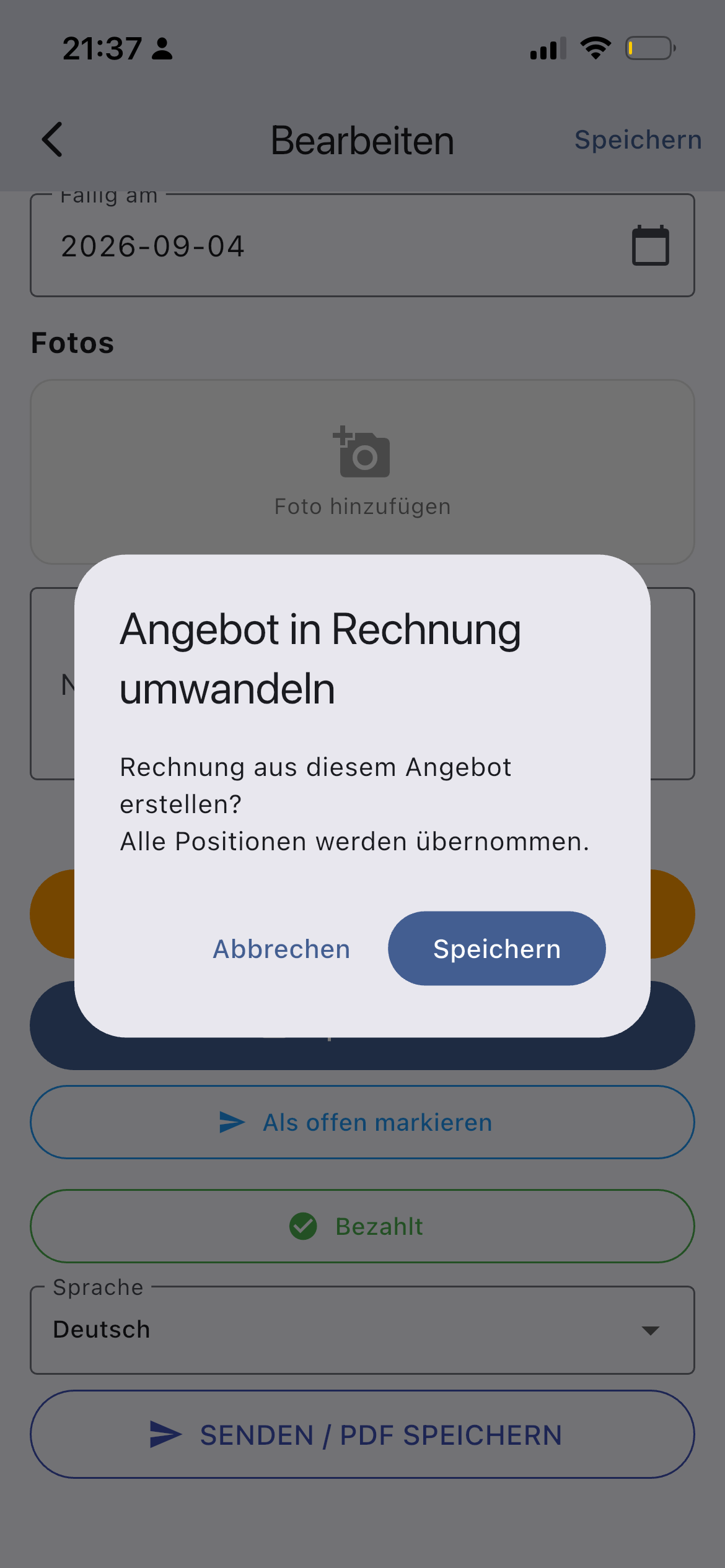
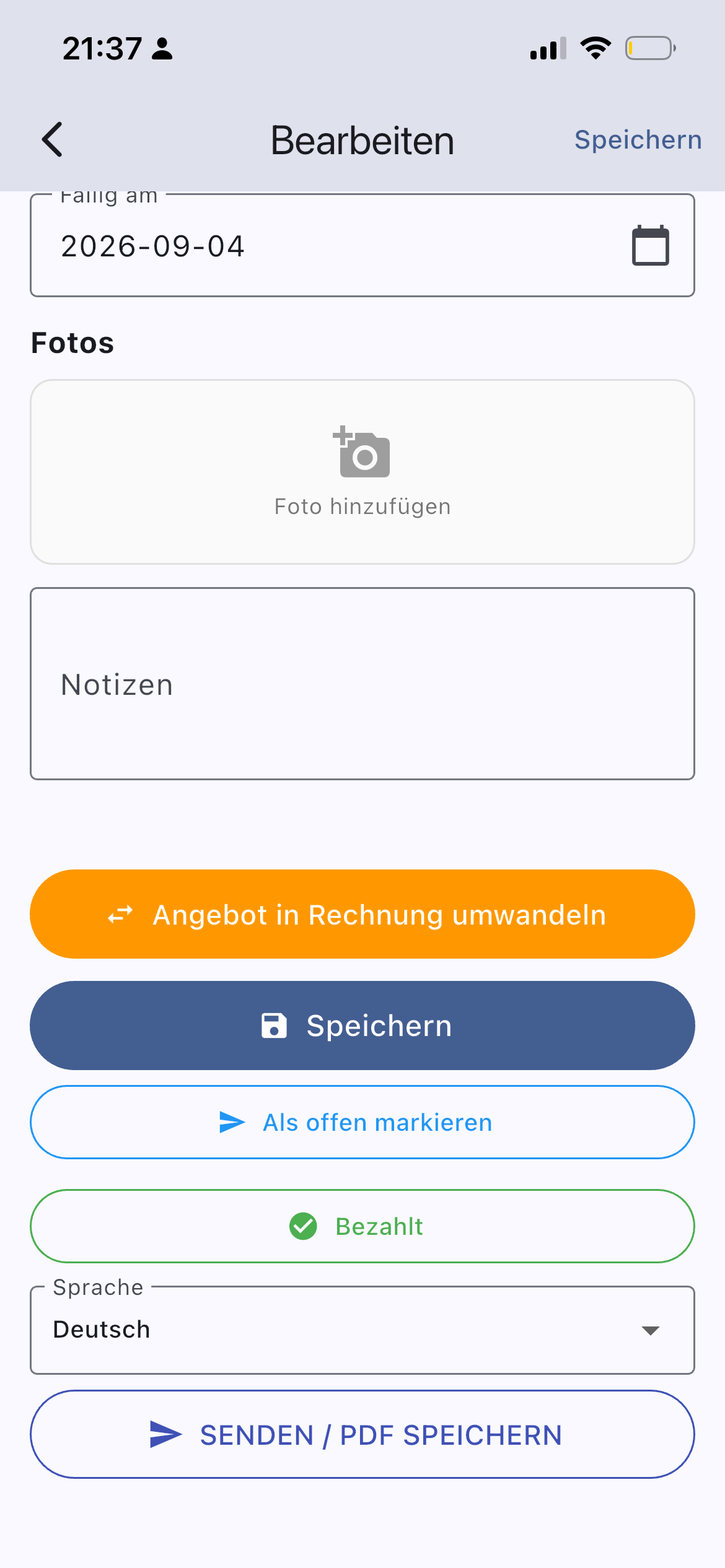
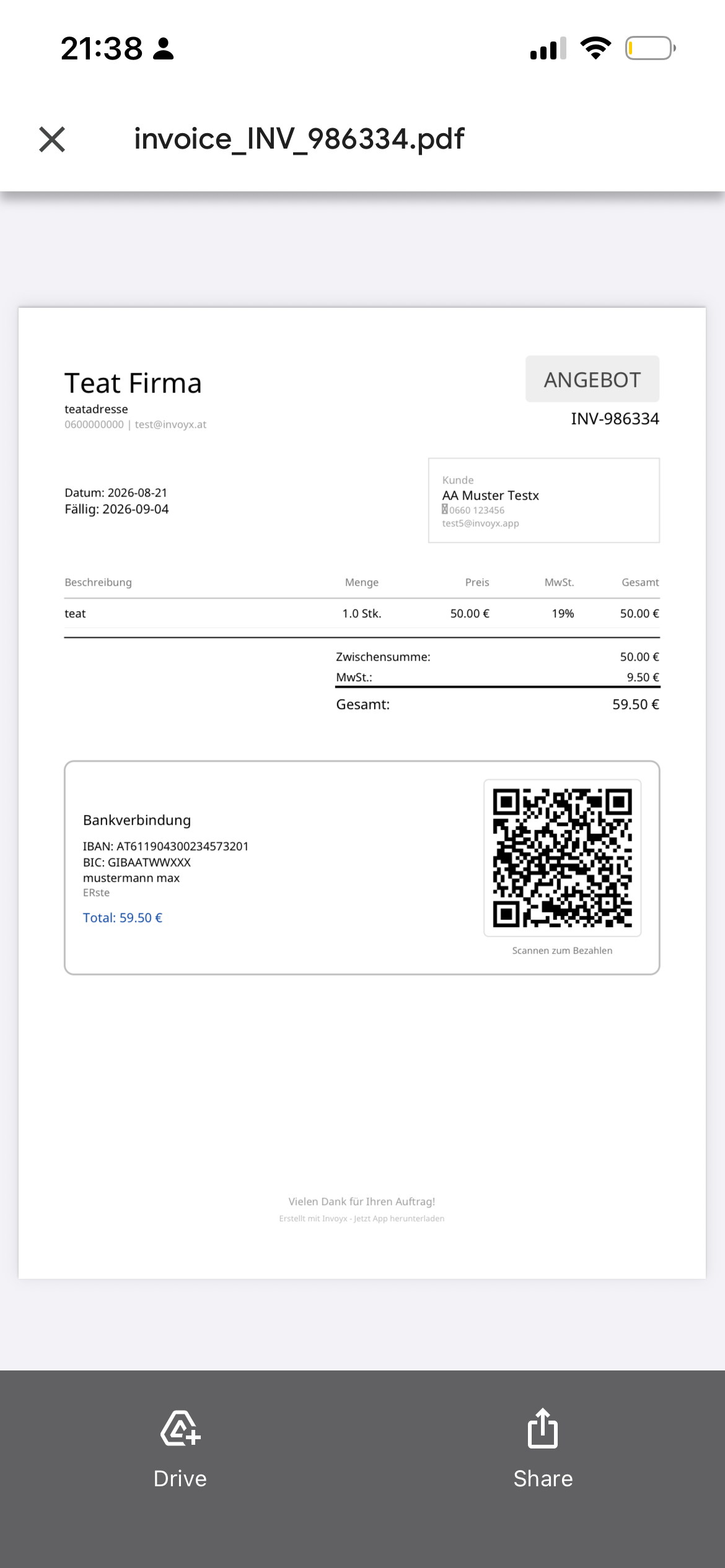
Send a quote to your customer — it's saved in the app as an offer. When the customer accepts it, open the offer, scroll down and convert it to an invoice. After filling in the customer or anonymous data you can add line items with prices and individual taxes, and give a discount as a percentage or fixed amount — exactly like an invoice. Saving keeps the status offer; sending sets it to sent. Convert it to an invoice with the orange button, or mark it as open.
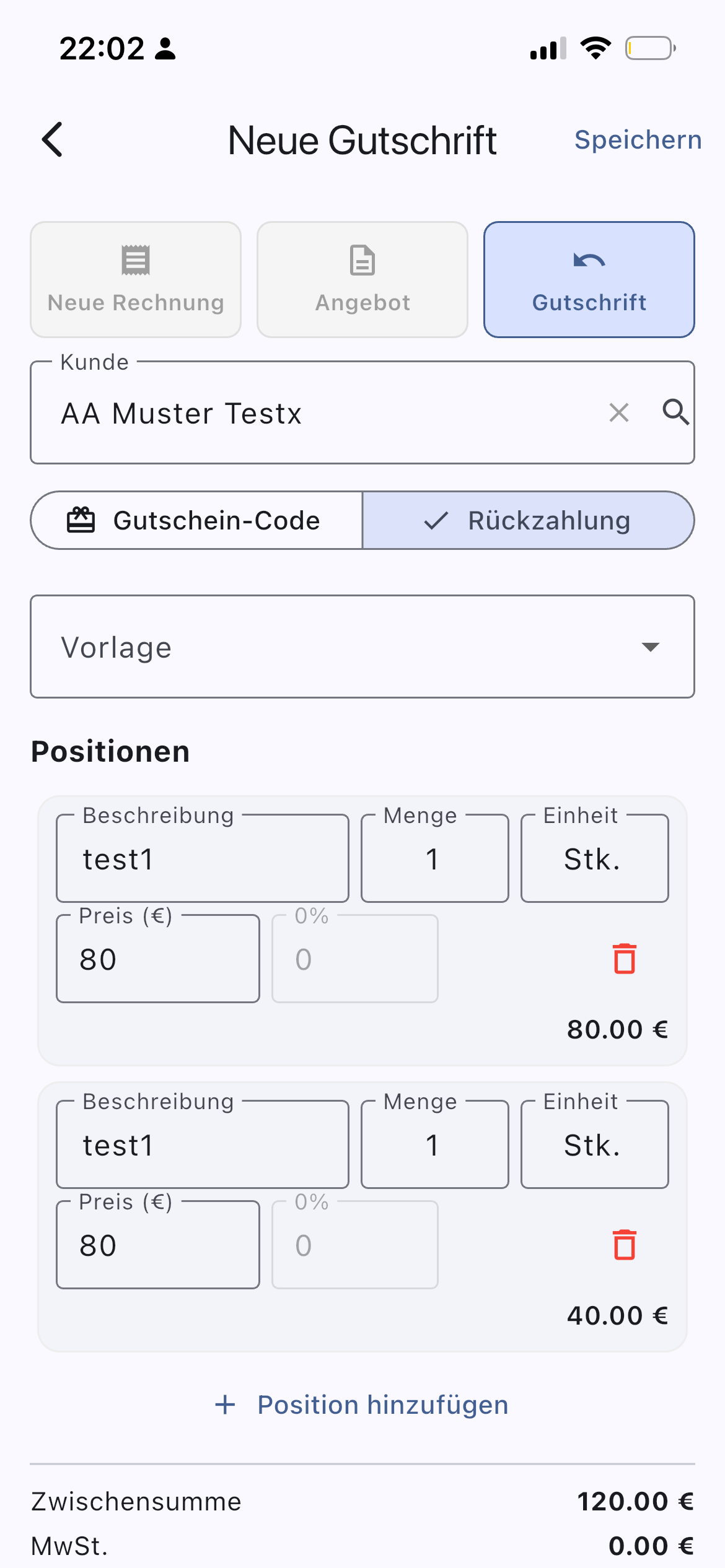
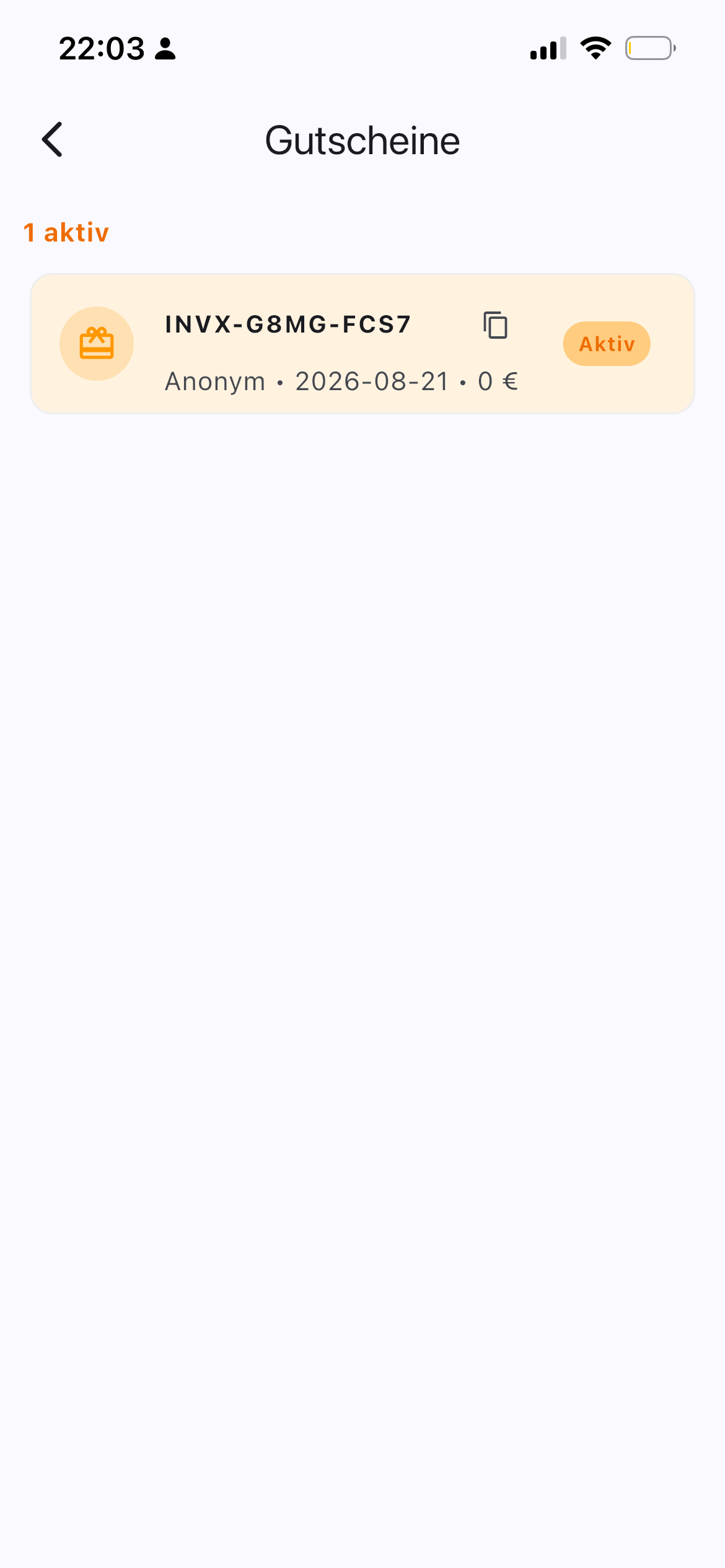
2.12 Credit notes, vouchers & refunds (Gutschrift & Rückzahlung)
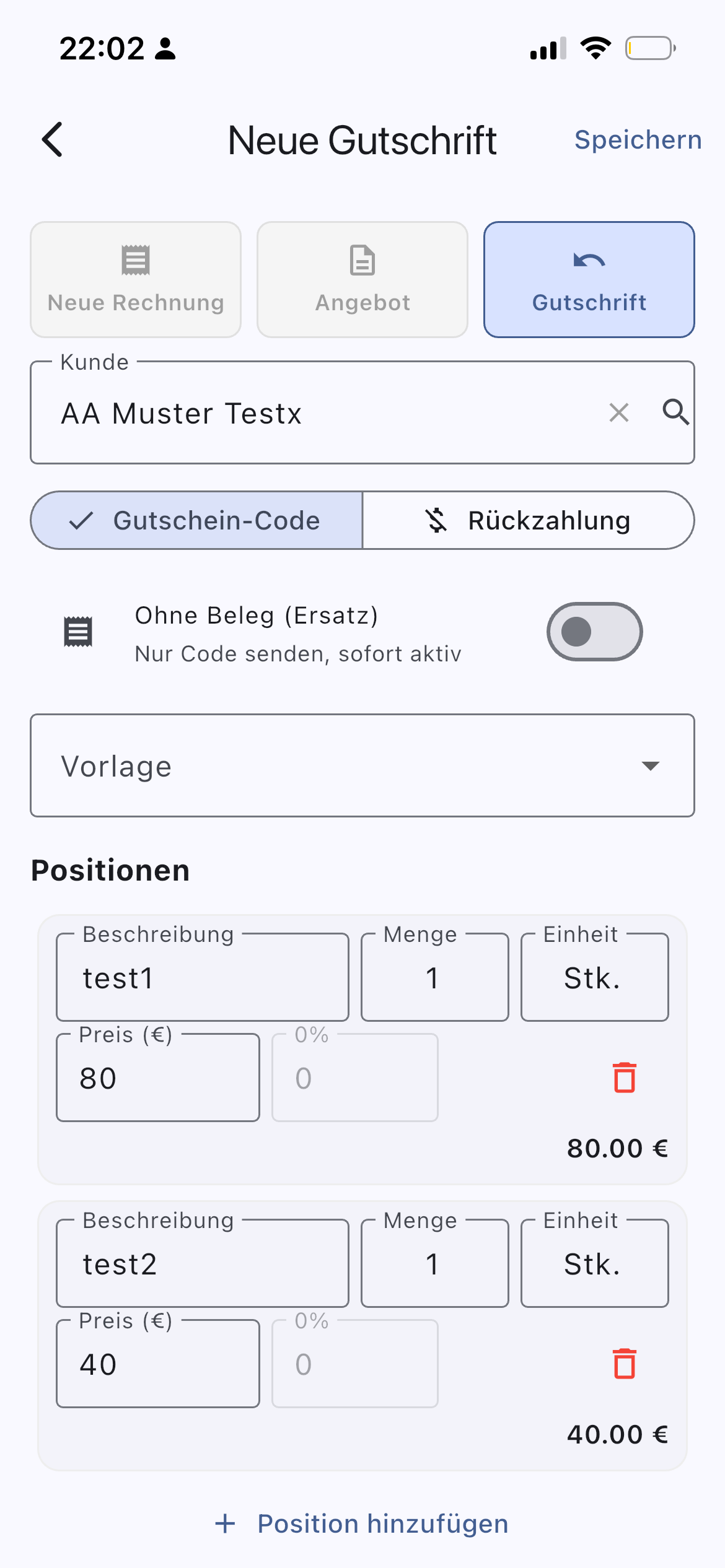
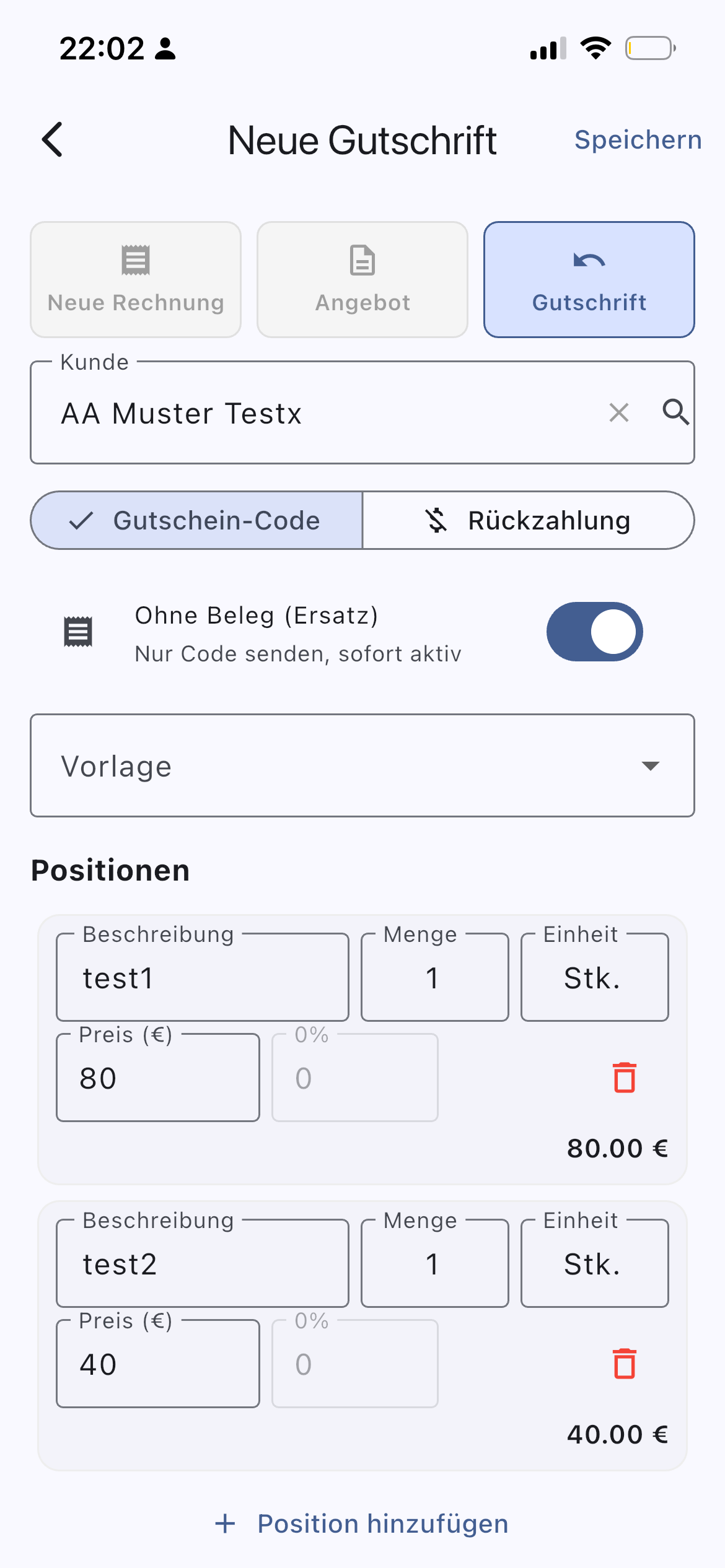
There are several options under Gutschrift:
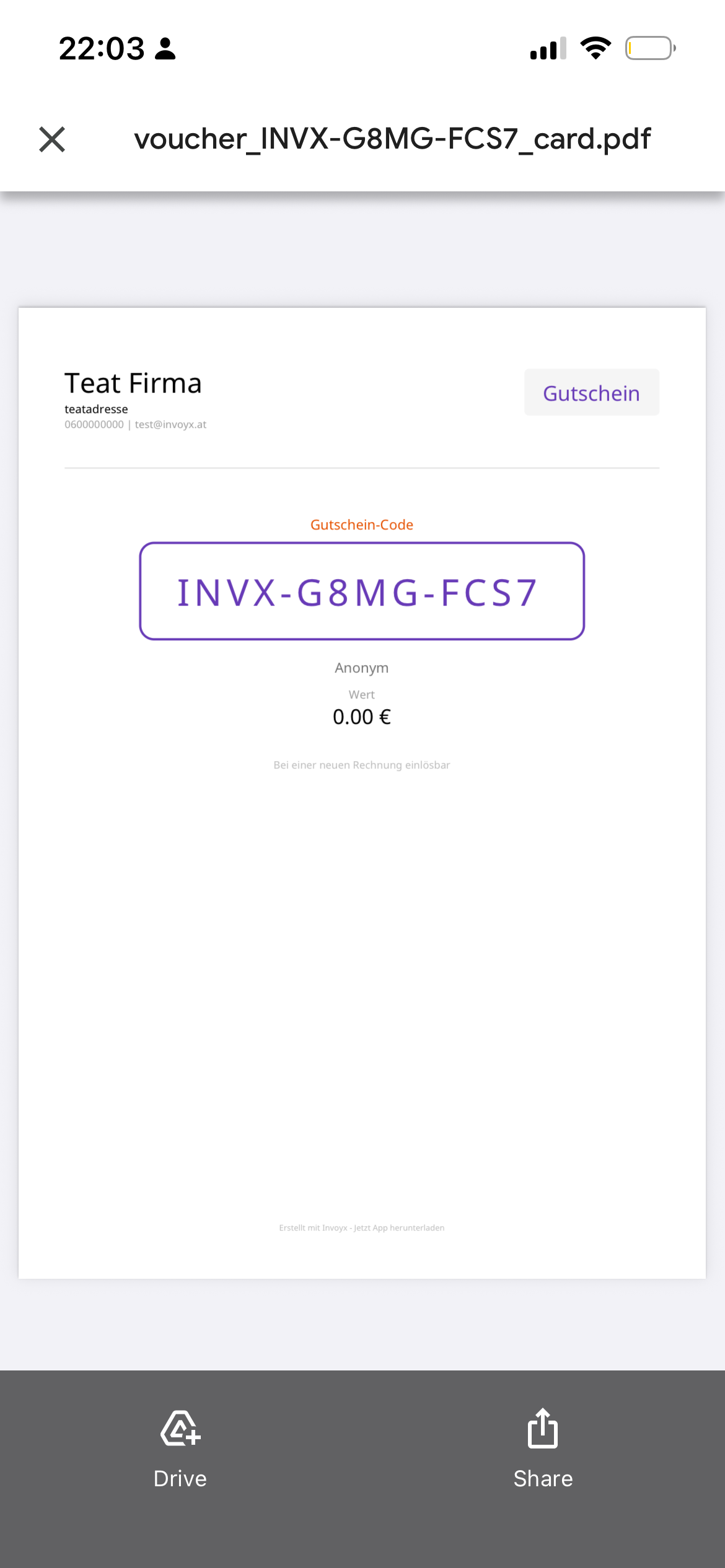
- Gift a voucher to a customer — it's activated automatically and sent to the customer as a code they can redeem in the app. To activate: open Invoices, tap +, switch to the Gutschrift tab and tap Ohne Beleg (without receipt).
- Someone else gifts a voucher — in this case do not press Ohne Beleg. The customer receives an invoice and a voucher; the voucher is activated only once the invoice is paid, so your customers can gift vouchers to others.
You can also refund a customer: go to Invoices → add, switch to the Gutschrift tab and tap Rückzahlung (refund) in the inner tab.
3 Dashboard
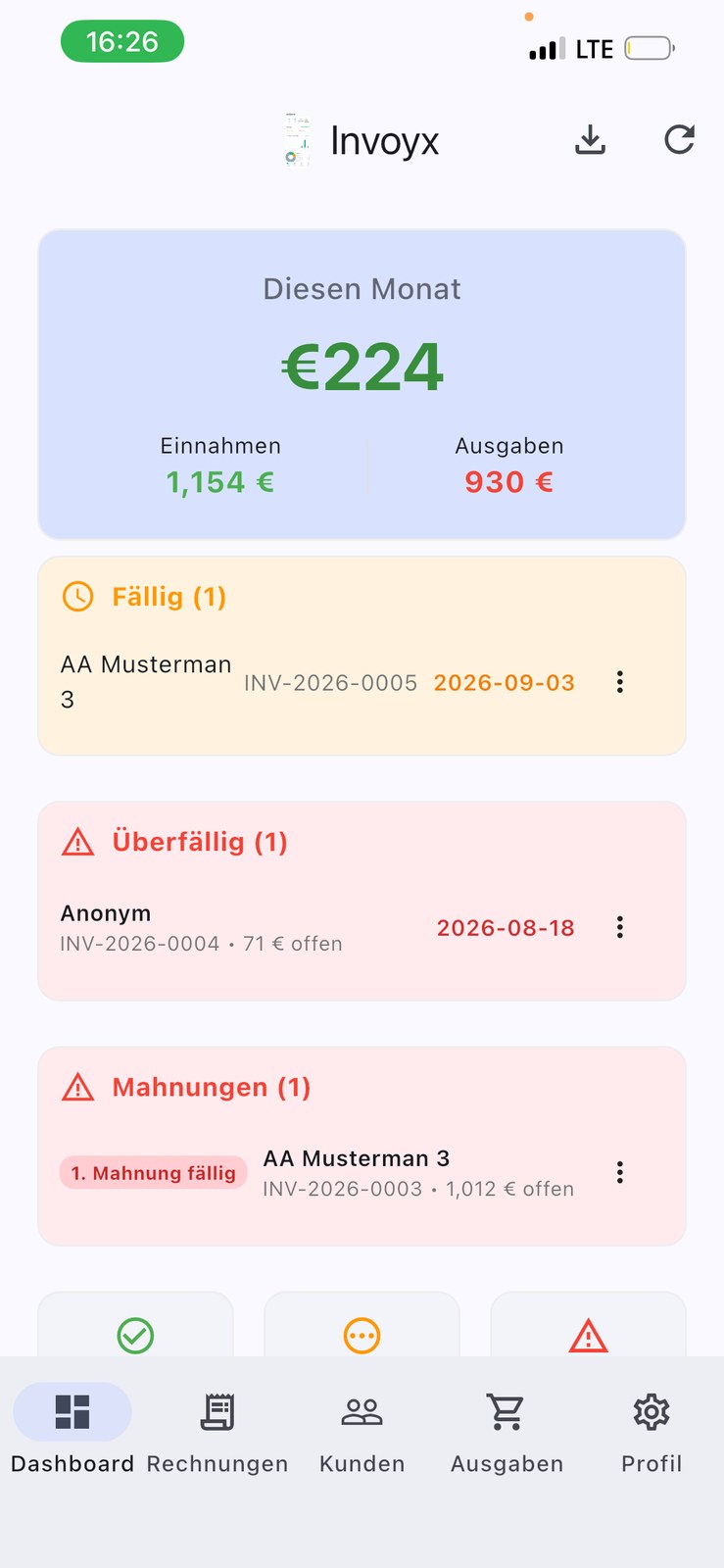
The dashboard is your home screen — a live overview of your business: income vs. expenses, unpaid and overdue invoices, dunning, exports, reports and your tax export.
3.1 Income vs. expenses overview
At the top you see a chart comparing your income and expenses for the current month. You can filter it by month or any custom period.
3.2 Due
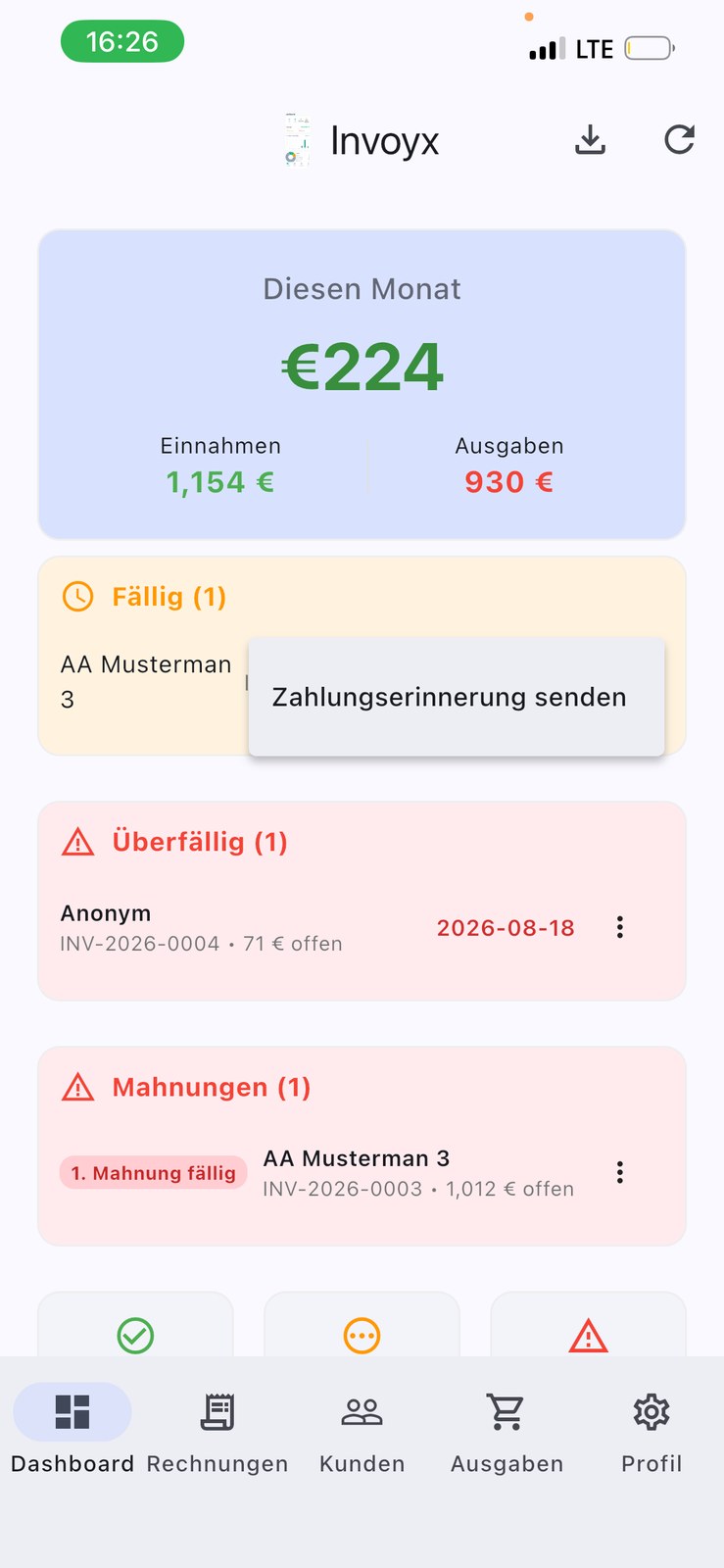
The Due list shows all invoices that haven't been paid yet. Tap the three dots on the right to send a payment reminder.
3.3 Overdue
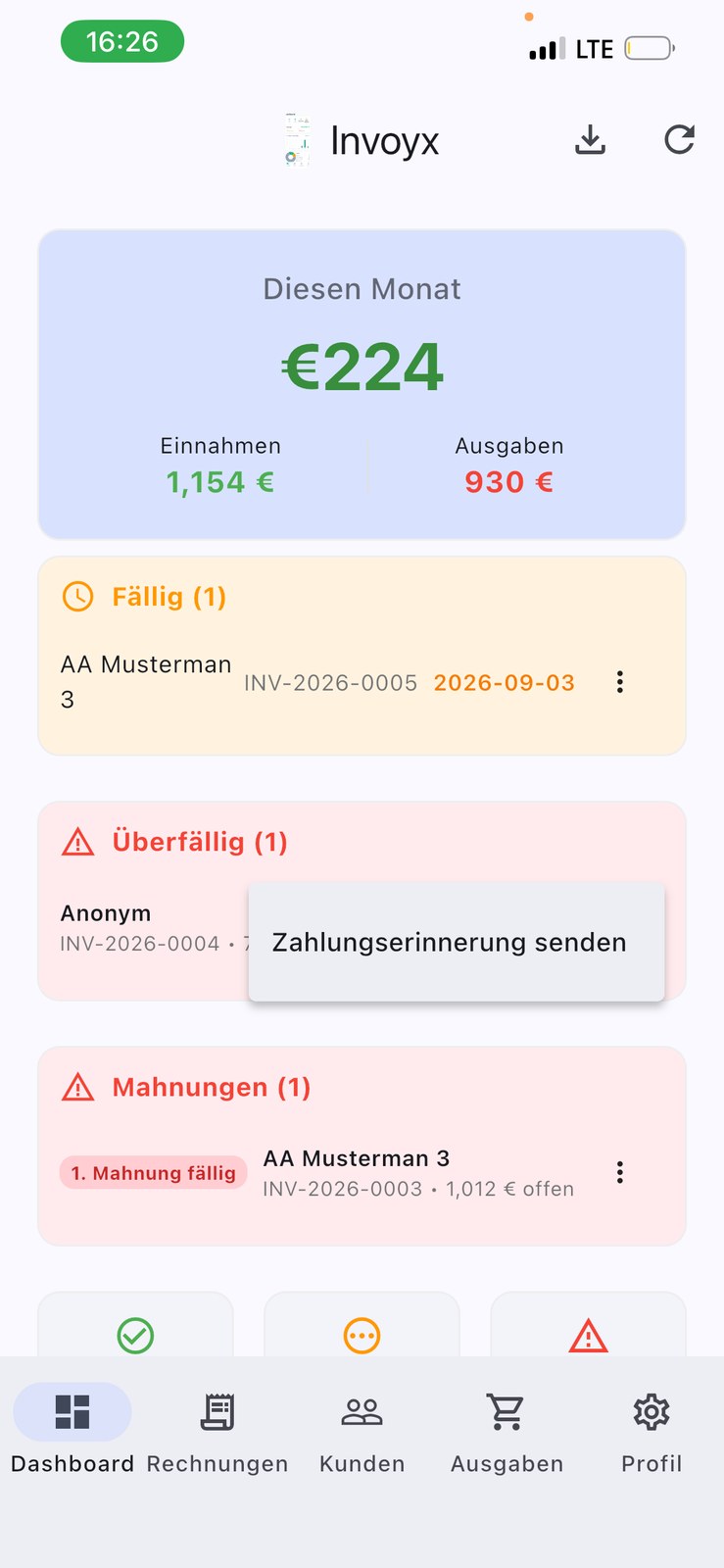
The Overdue list shows unpaid invoices that are about to go into dunning. You can send a reminder from here too.
3.4 Dunning
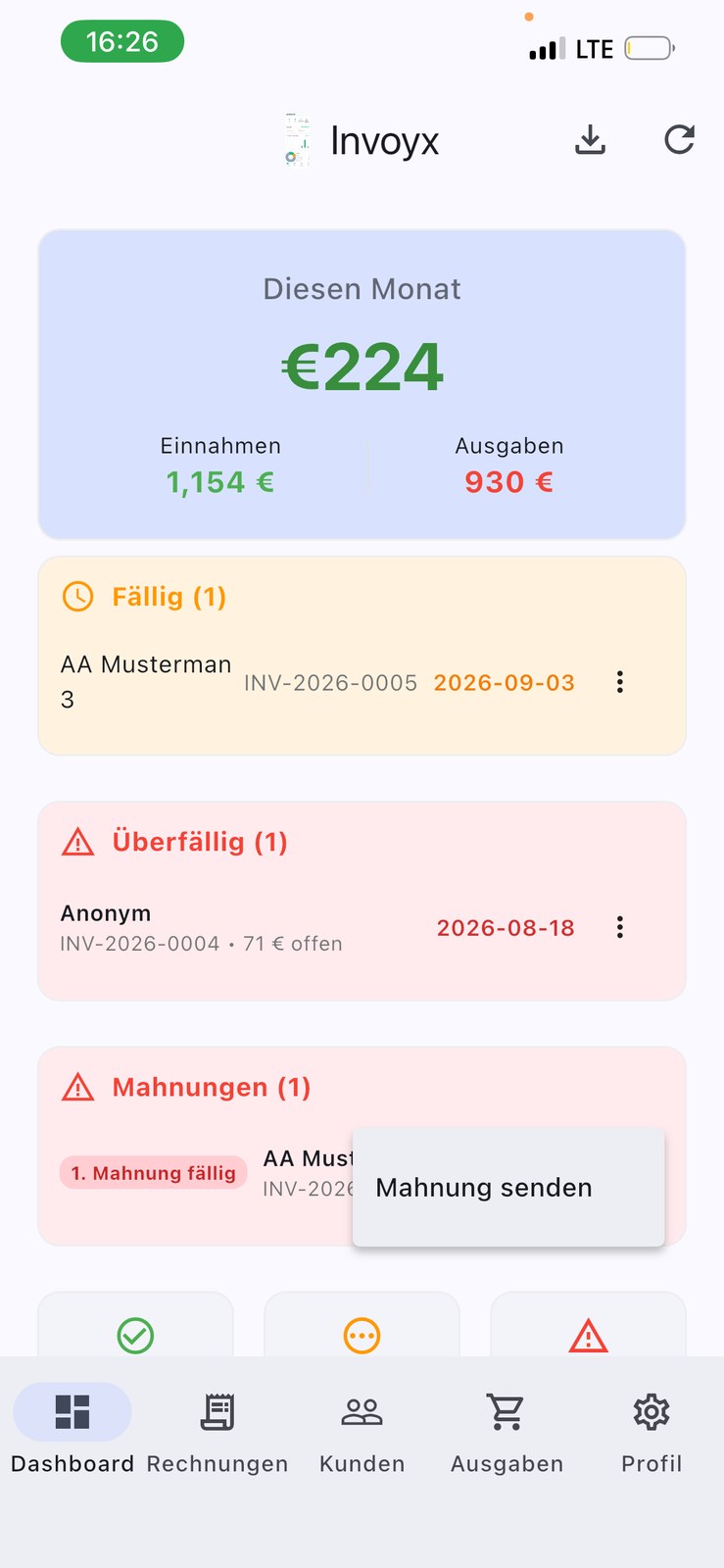
If you enabled dunning in your profile, you'll see this view and can send formal dunning notices directly from here.
3.5 Export income & expenses
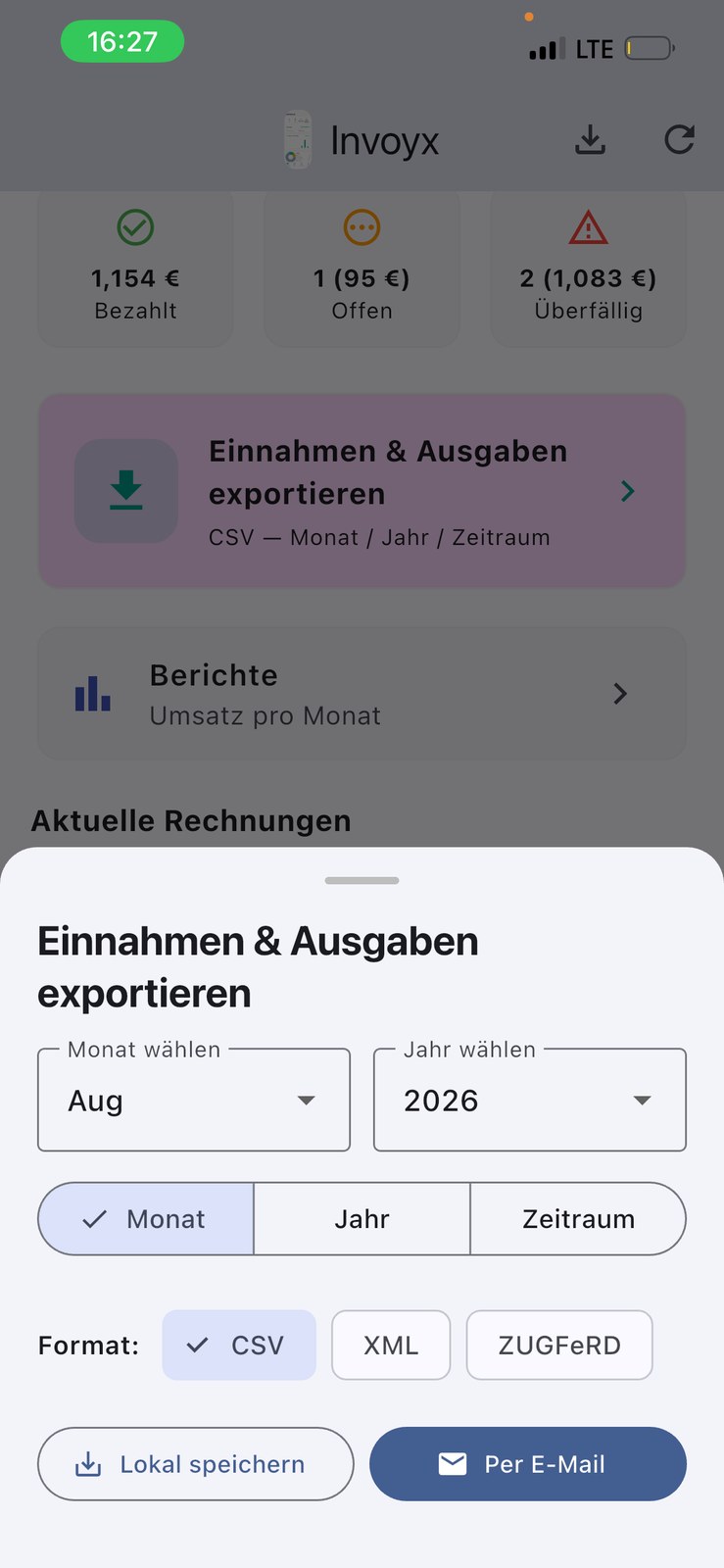
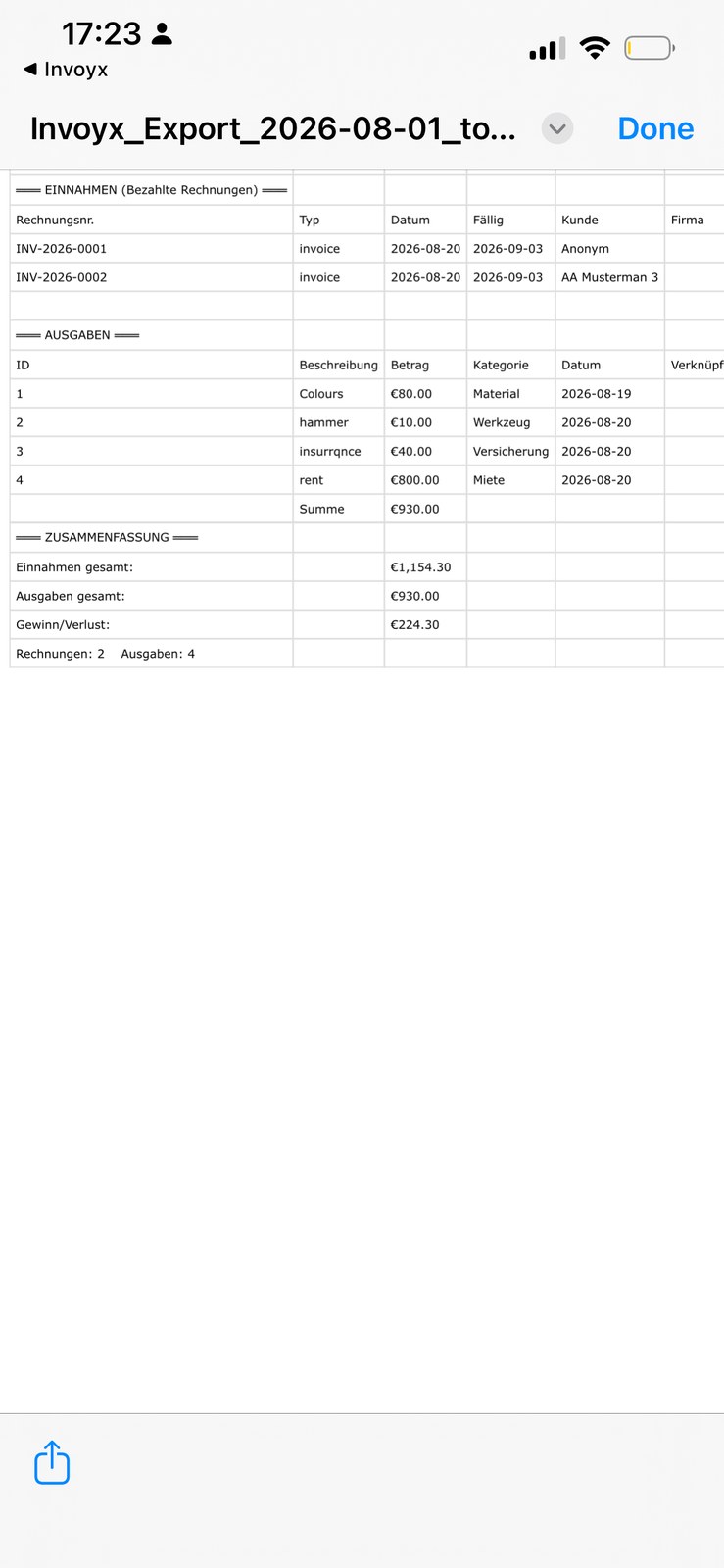
Under Export income & expenses you can generate a CSV for a specific month, year or any period. The CSV is clearly organized and shows the difference between income and expenses — perfect for a month-end summary. You can also export an XML for your accountant (including ZUGFeRD) or save locally.
Sending works by email, WhatsApp or any app on your phone.
3.6 Reports
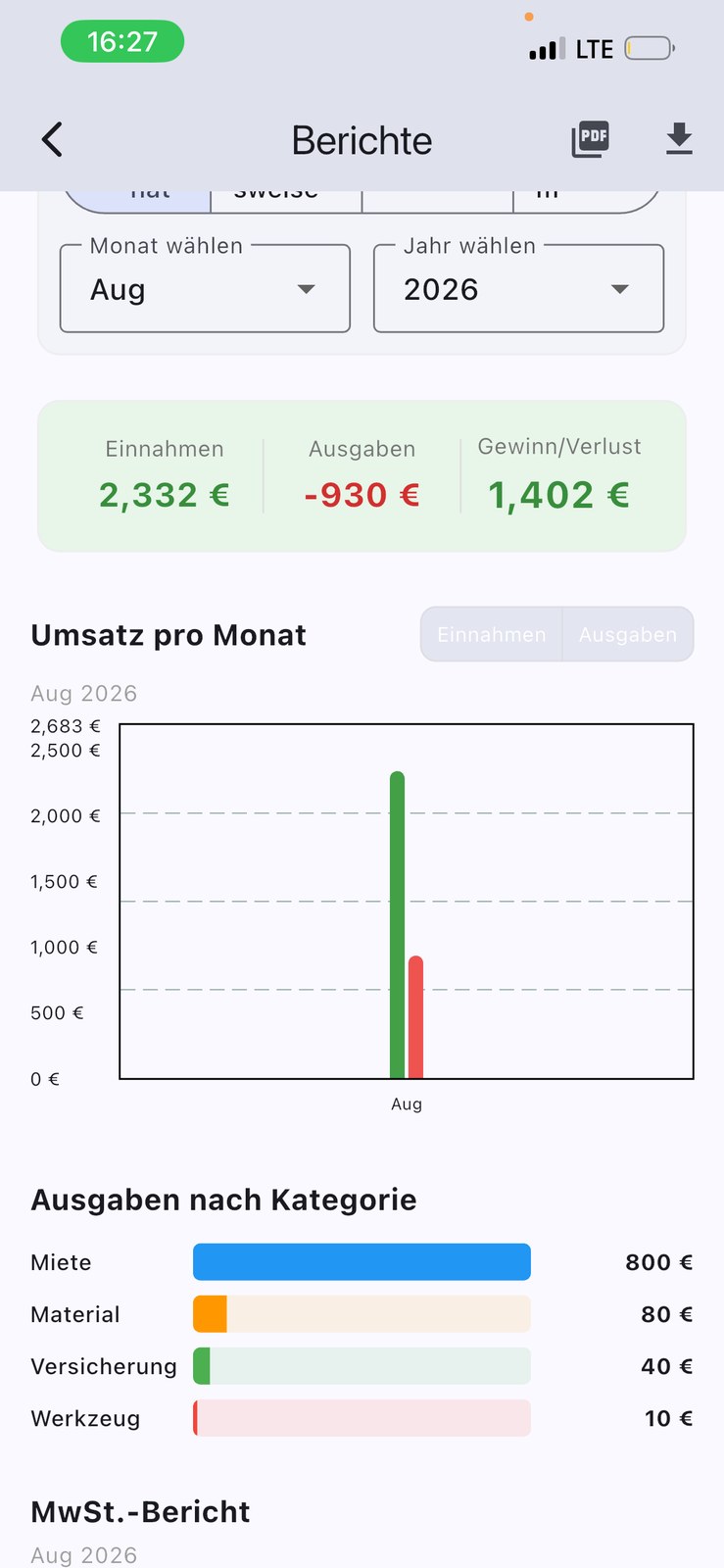
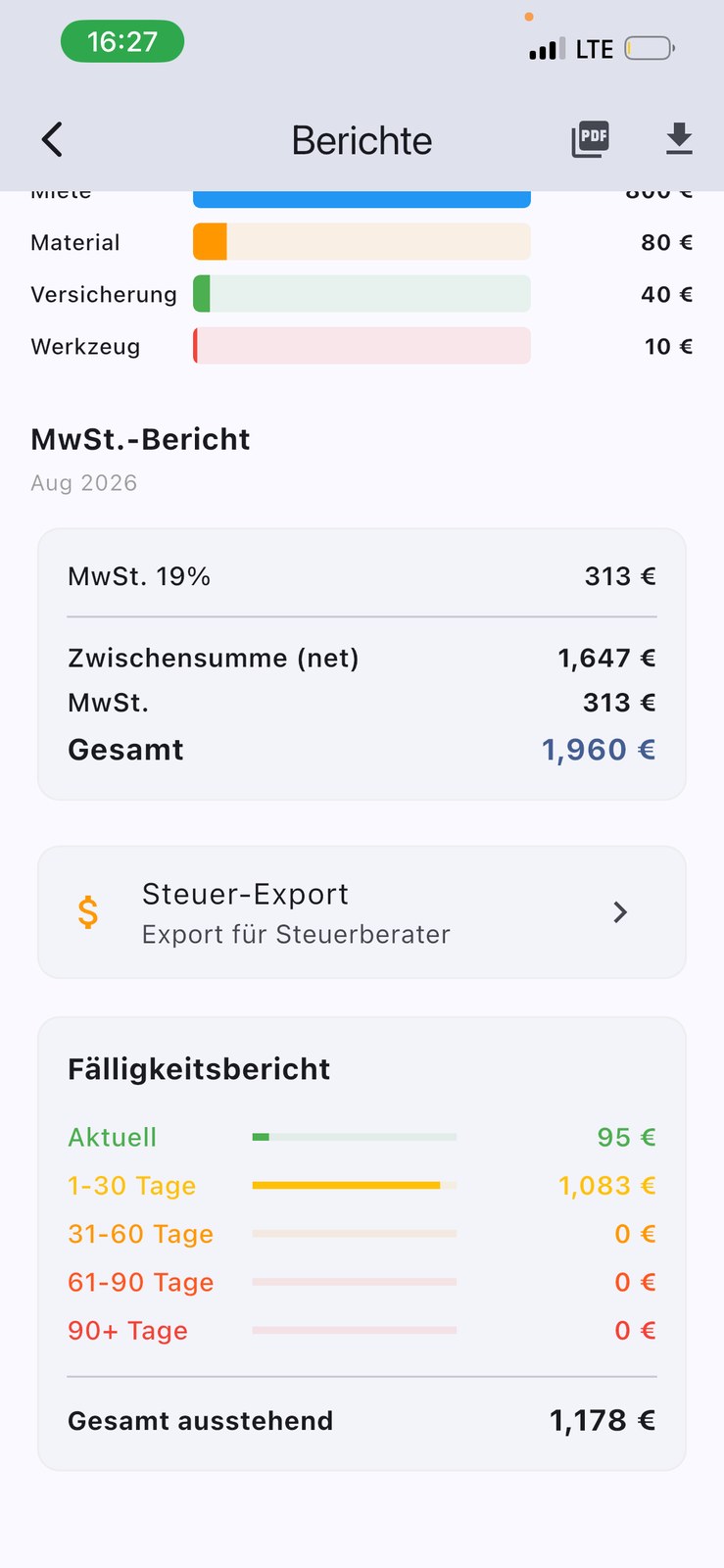
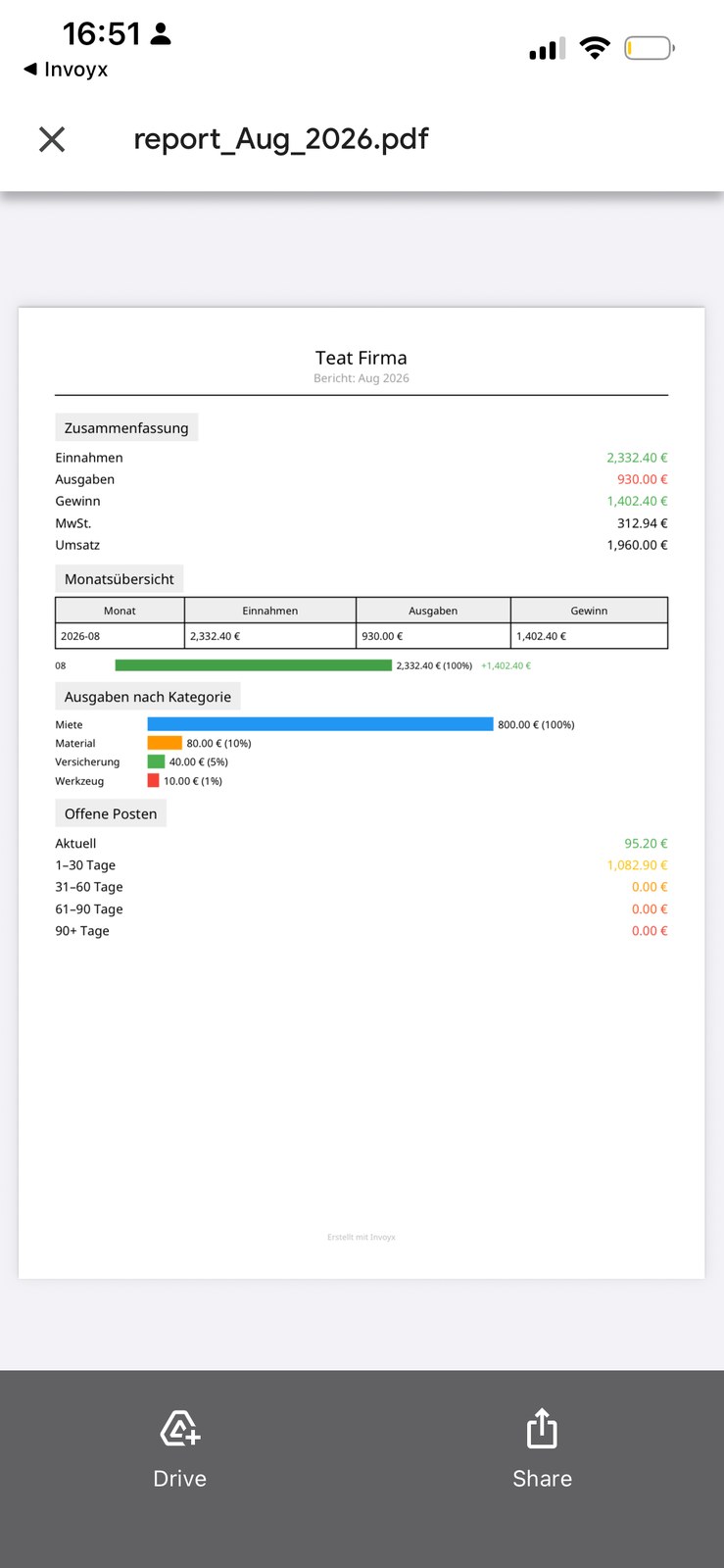
Here you can filter by period and view charts. Use the button at the top right to export as PDF or download as CSV.
3.7 Tax export
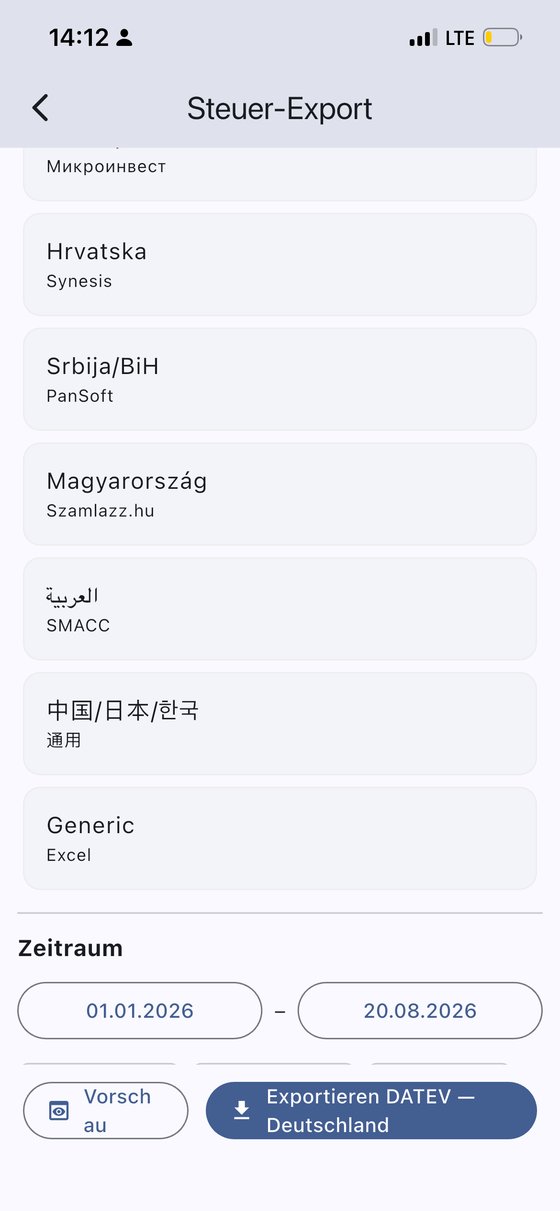
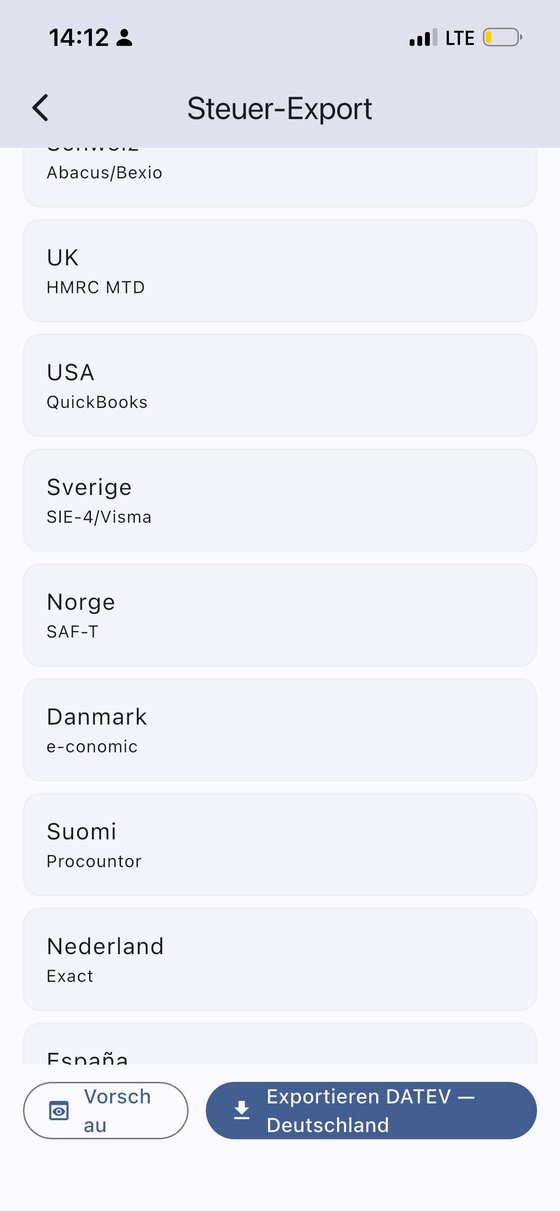
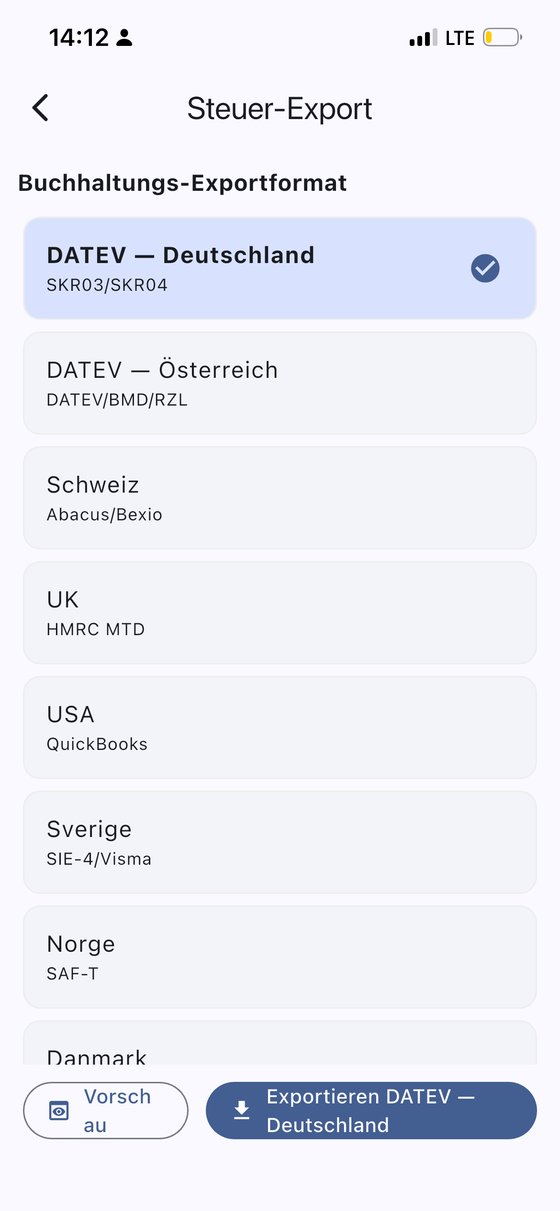
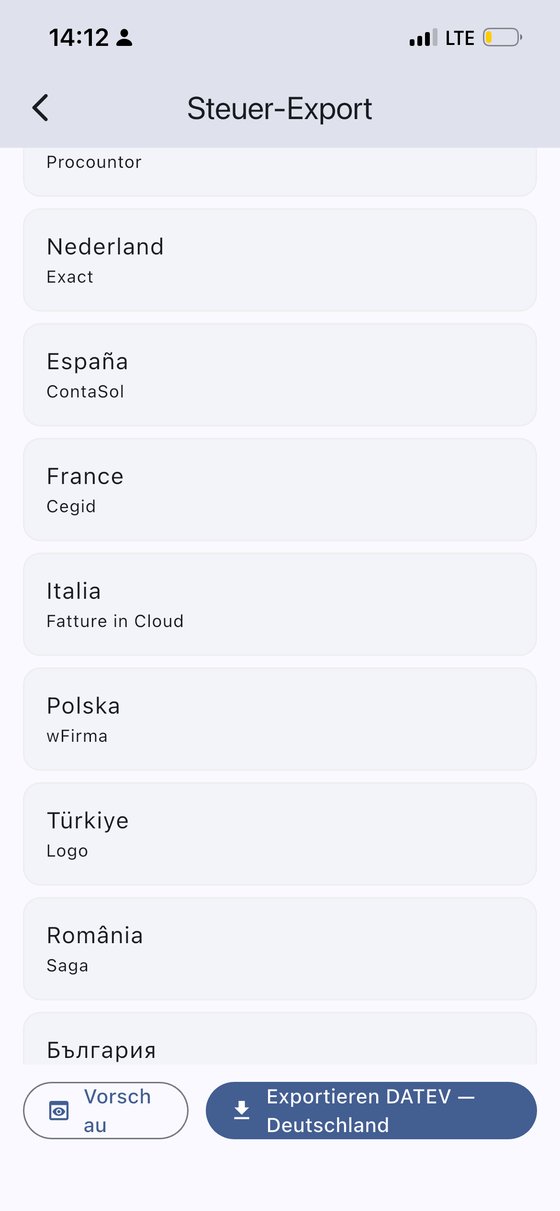
Scroll down on the dashboard to Tax export, tap it and choose your format: DATEV (Germany, Austria), Bexio (Switzerland), UK HMRC MTD, USA QuickBooks and many more. Scroll further to choose a period or a full year. The export goes out by email, WhatsApp, Telegram or local storage.
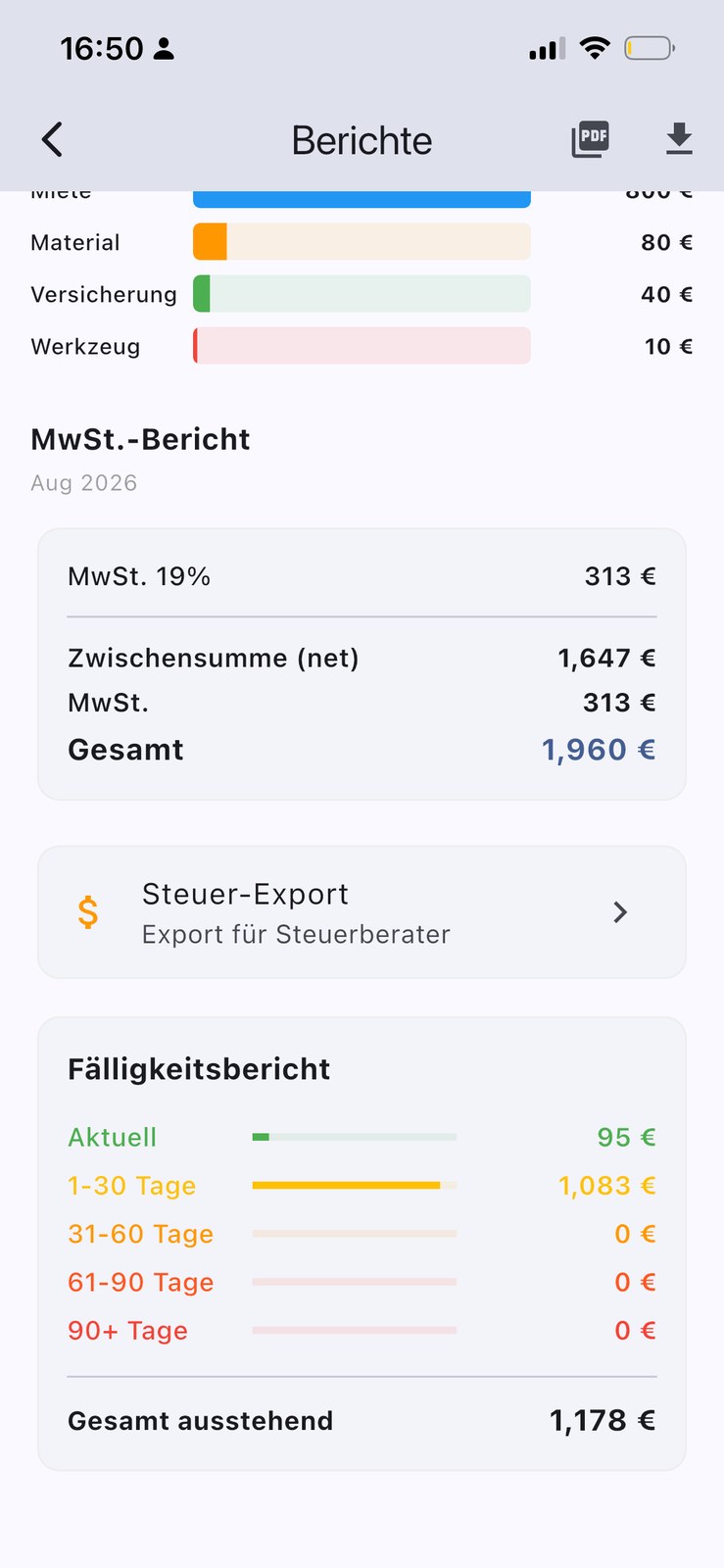
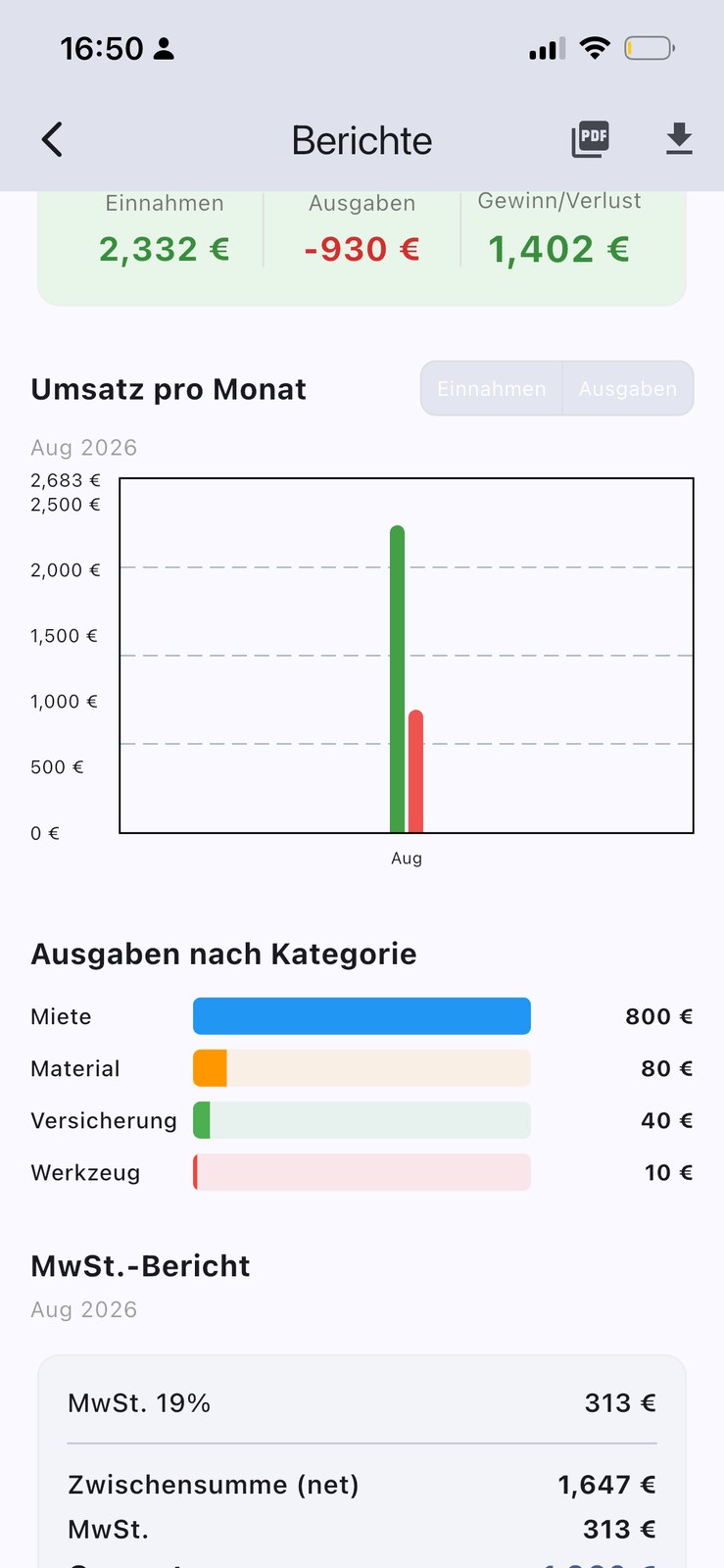
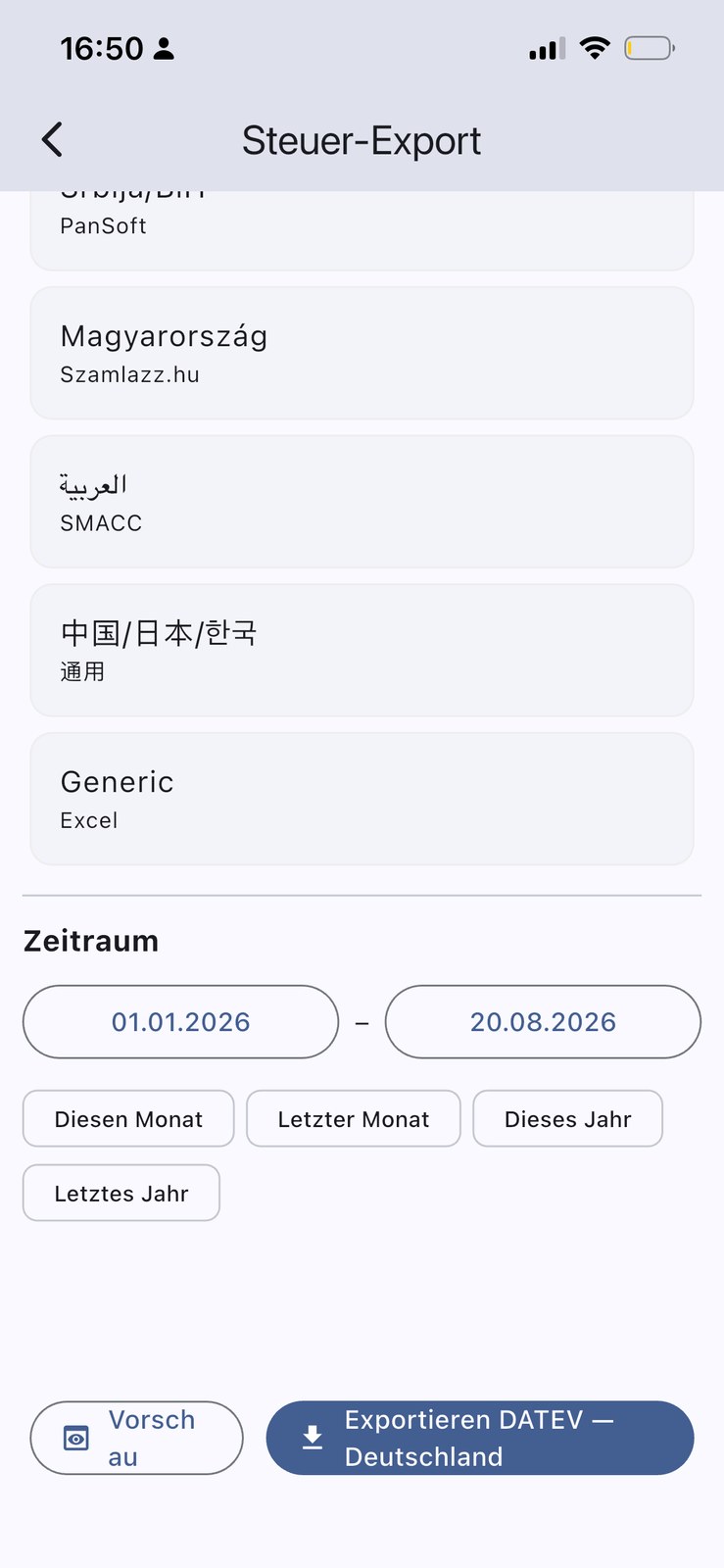
3.8 Current invoices & last payments
At the bottom of the dashboard you can filter your current invoices and see the latest payments.
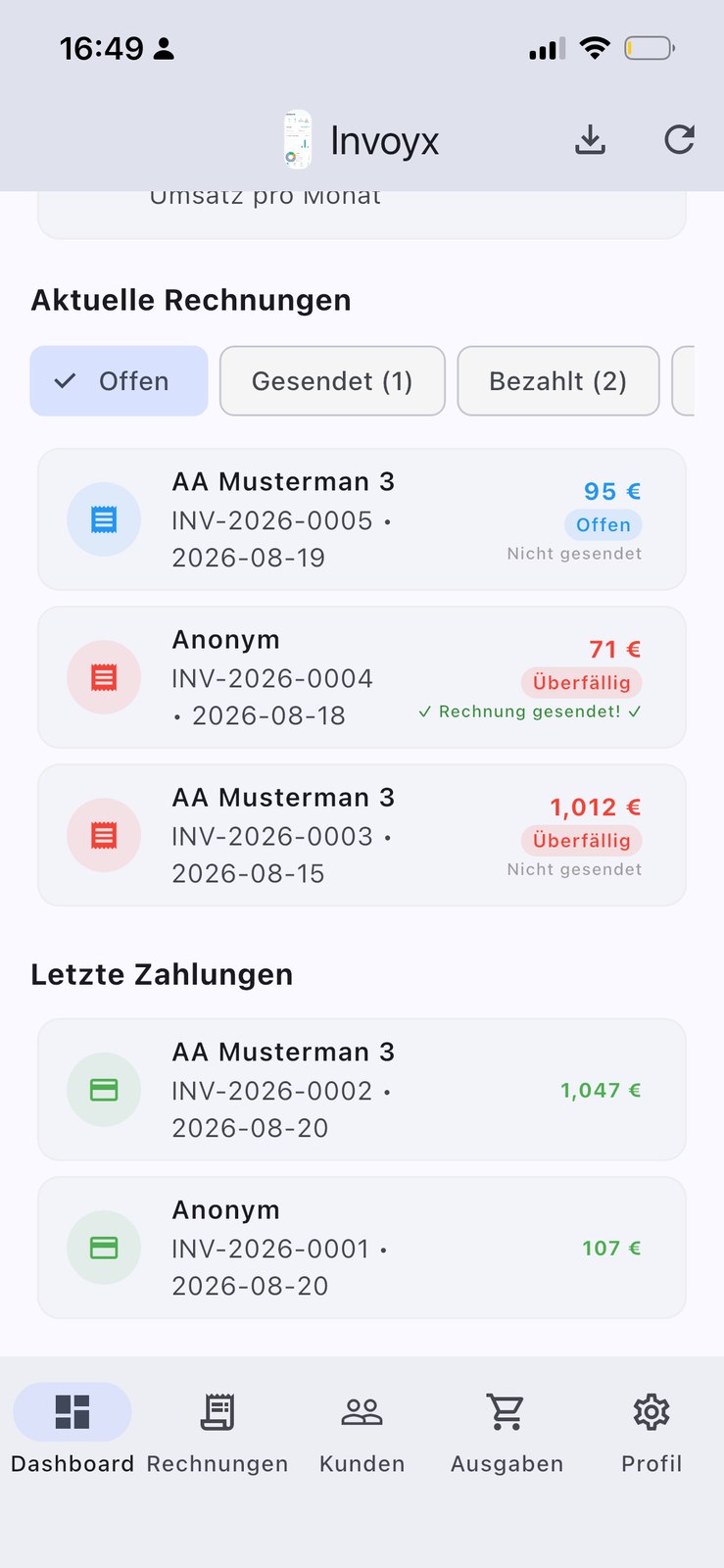
4 Invoice defaults
Set up how your invoices are numbered and paid: the invoice-number prefix and starting number, the default tax rate, and the payment term (how many days your customer has to pay). Set this once and every new invoice follows your rules automatically.
5 Language, currency & country code
- Language — the language of the app's menus and buttons.
- Currency — the default currency, shown on every invoice.
- Document language — the language your invoices and tax reports are generated in. You can use the app in your own language while your documents are written in your customer's language — one of InvoYX's key strengths for international work.
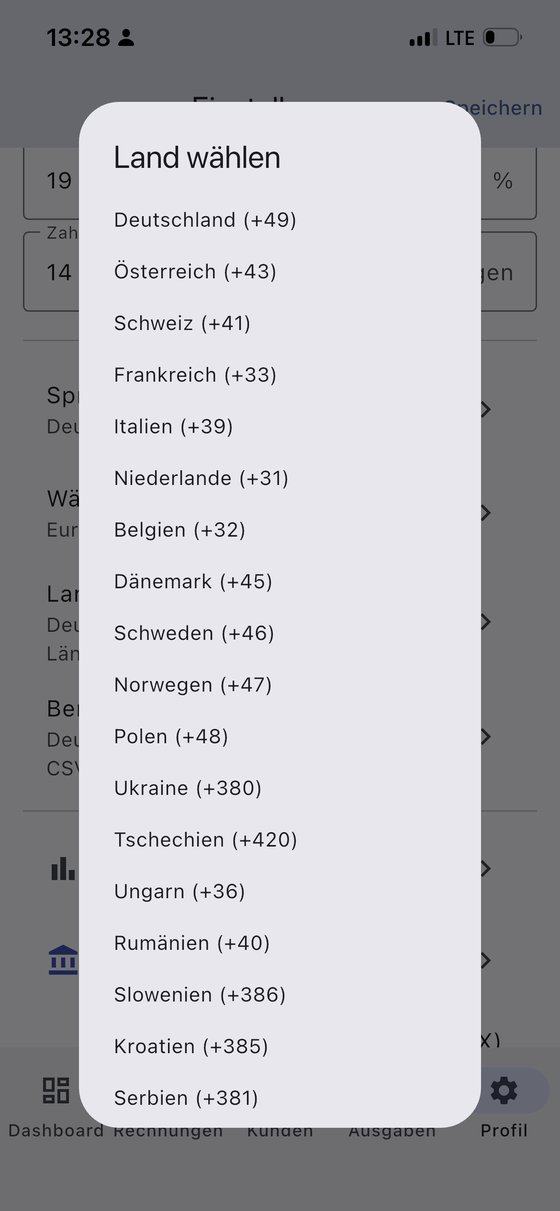
- Country code — the default dialing code added to phone numbers for new customers (e.g. Germany +49).
6 Reports & accounting exports
Filter reports by month, quarter, year or a custom period, and export your data for your accountant in the format they use. Scroll down to filter by time period.
Supported export formats include: DATEV (Germany), Austria, Abacus/Bexio (Switzerland), UK HMRC MTD, USA QuickBooks, Sweden SIE-4/Visma, Norway SAF-T, Denmark e-conomic, Finland Procountor, Netherlands Exact, Spain ContaSol, France CogiD, Italy Fatture in Cloud, Poland wFirma, Türkiye Logo, Romania SAGA, generic Excel, BiH Pansoft, Russia, Japan and Hungary Számlázz.hu. You can set your default format here.
E-invoicing: every invoice is a ZUGFeRD / Factur-X hybrid PDF. You can also export all income and expenses at once from the dashboard.
7 Dunning (payment reminders)
Turn on dunning and InvoYX helps you chase late payments automatically. You get three reminder levels, each with its own number of days and late fee, plus a status so you always know whether the first, second or third reminder was already sent. Also included: payment reminders, payment confirmations, partial-payment confirmations and formal dunning notices.
8 Message & invoice templates
Email / WhatsApp templates
Every message — email, WhatsApp or any other app — can be customized. Sensible default text is pre-filled, but you can tailor the wording for: invoices, payment reminders, payment confirmations, partial-payment confirmations and dunning levels 1, 2 and 3.
Invoice templates
If you bill the same services again and again, save them as a template and import it into any new invoice — no retyping line items.
9 Notifications & storage
Notifications
Switch notifications on or off as you like. InvoYX can remind you daily to create a backup, so you never lose your data.
Storage
On Android you can choose where your data is stored. On iPhone the folder name is shown for reference.
10 Security & backup
Security (app PIN)
Create an app PIN and InvoYX will open only with that code. The same PIN is used to encrypt your backup, so your financial data stays private.
Backup & transfer
- Daily backup — InvoYX asks daily whether to create a backup, and updates it with your permission.
- Create backup — create a backup at any time, or import an existing one onto a new device.
- Share backup — send your encrypted backup by email, WhatsApp or save it to a folder.
11 Expenses
Adding an expense
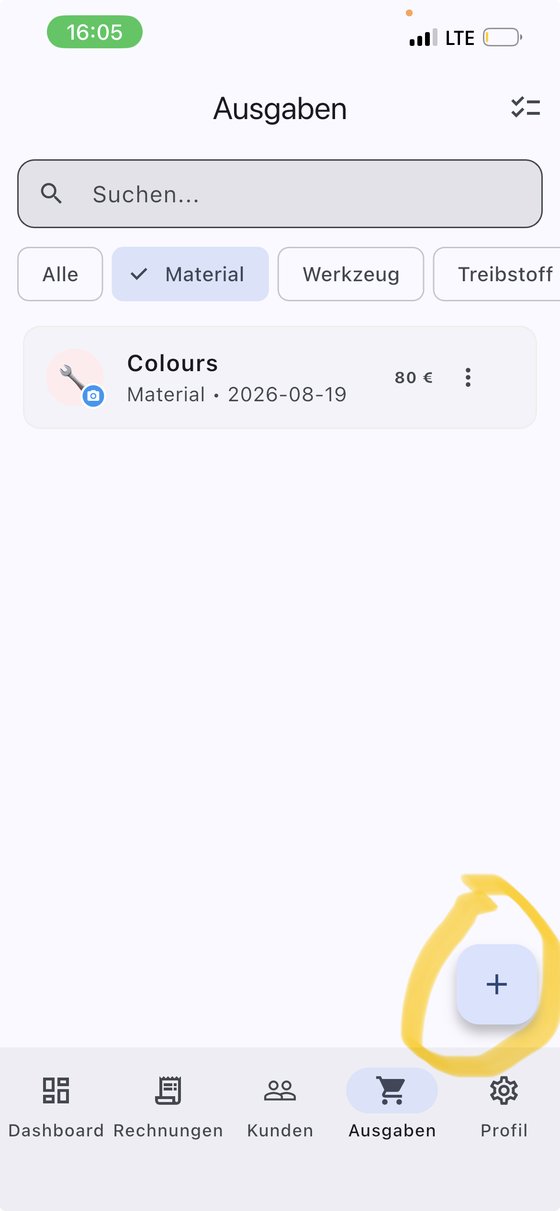
On the Expenses screen, tap the + button (bottom right) to add a new expense.
Expense fields
- Amount — the expense amount.
- Description — what you spent it on, so you can search for it later in the list.
- Category — materials, tools, fuel, insurance, rent, or other.
- Photos — attach a receipt or photo of what you bought; photos are included in the exported PDF when needed.
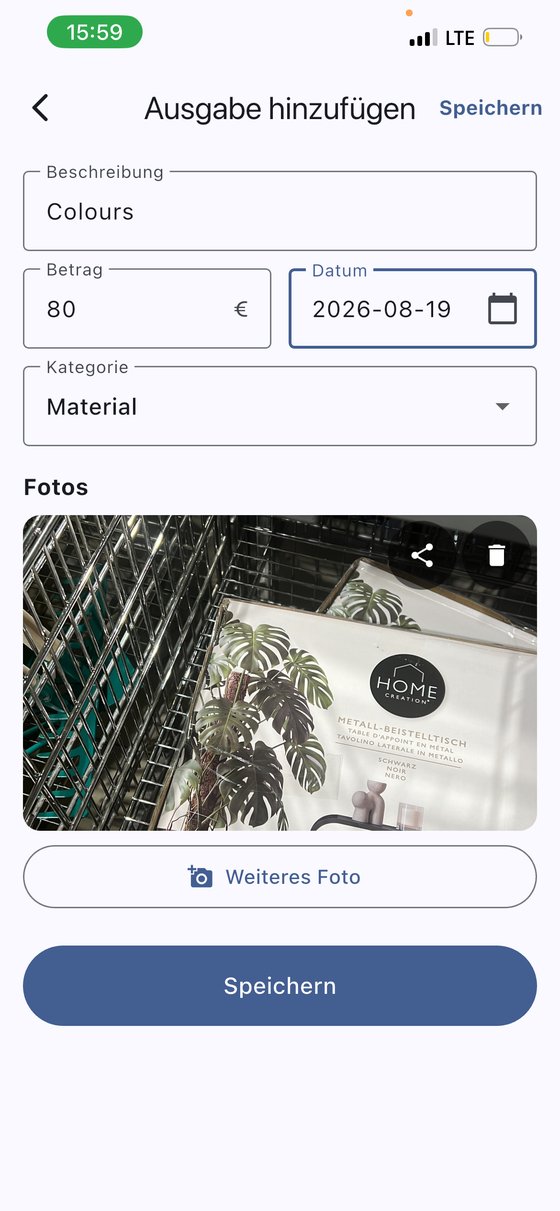
Tap Save to store the entry.
Exporting & sharing
Tap the three-dot menu on an entry and choose Export PDF — you can send it by email, WhatsApp, Telegram, Signal, or any communication app on your phone.
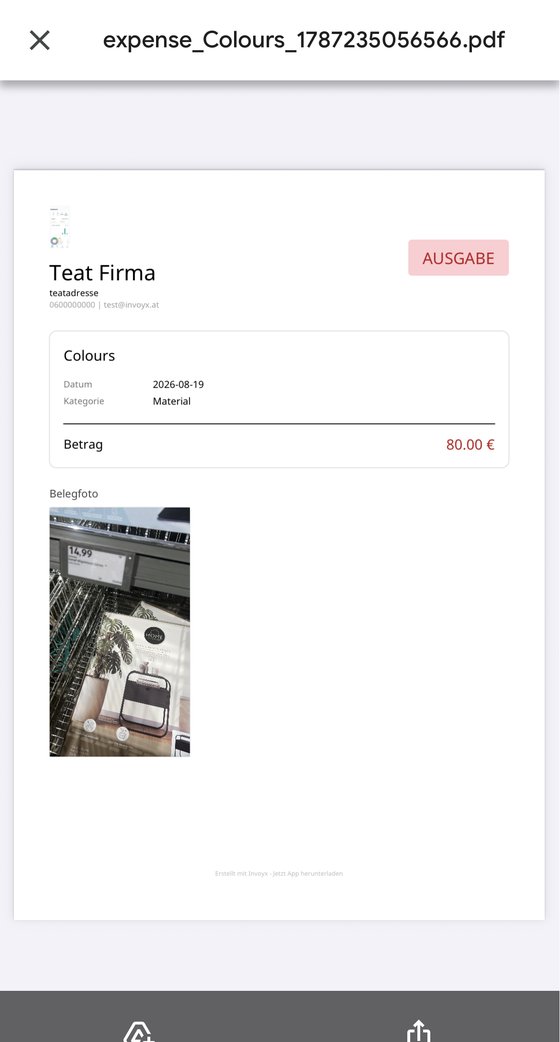
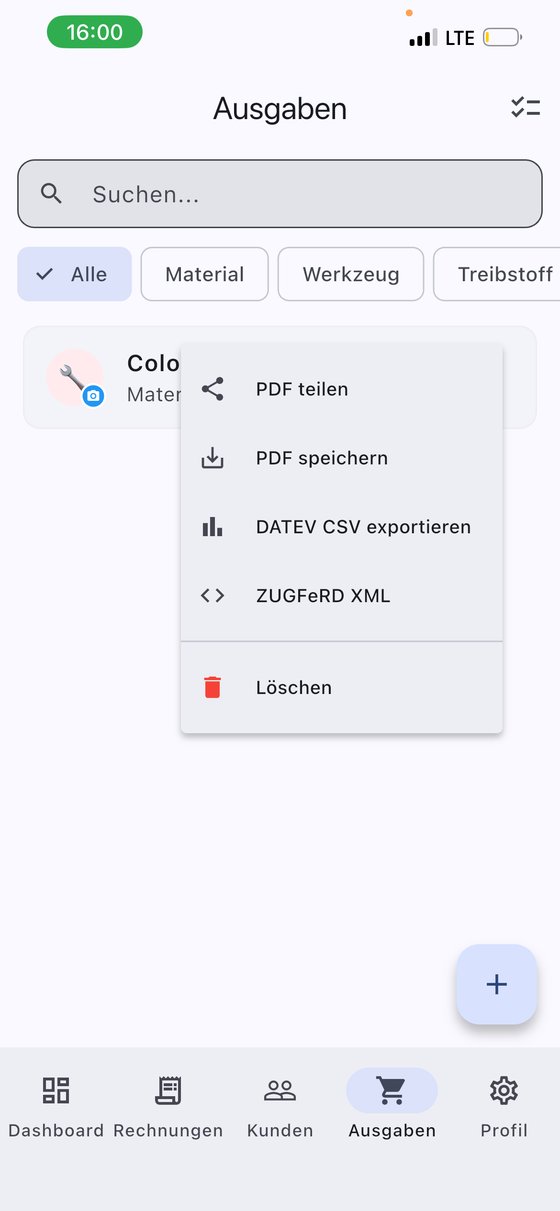
In the expenses list, tap the three-dot menu for more options: export as PDF, export as DATEV CSV, export as ZUGFeRD XML — or delete the expense.
Deleting expenses
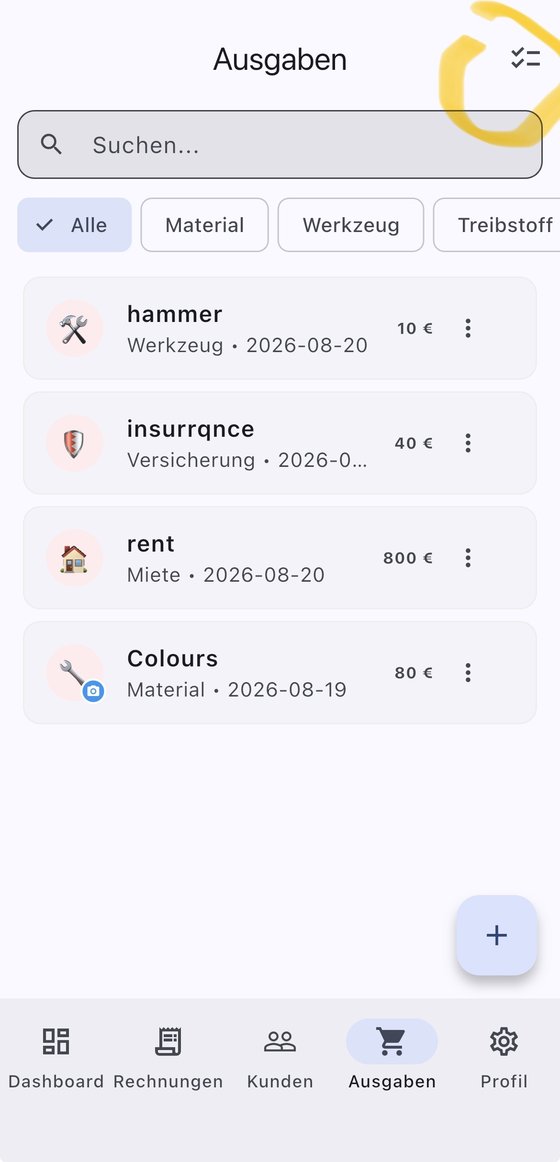
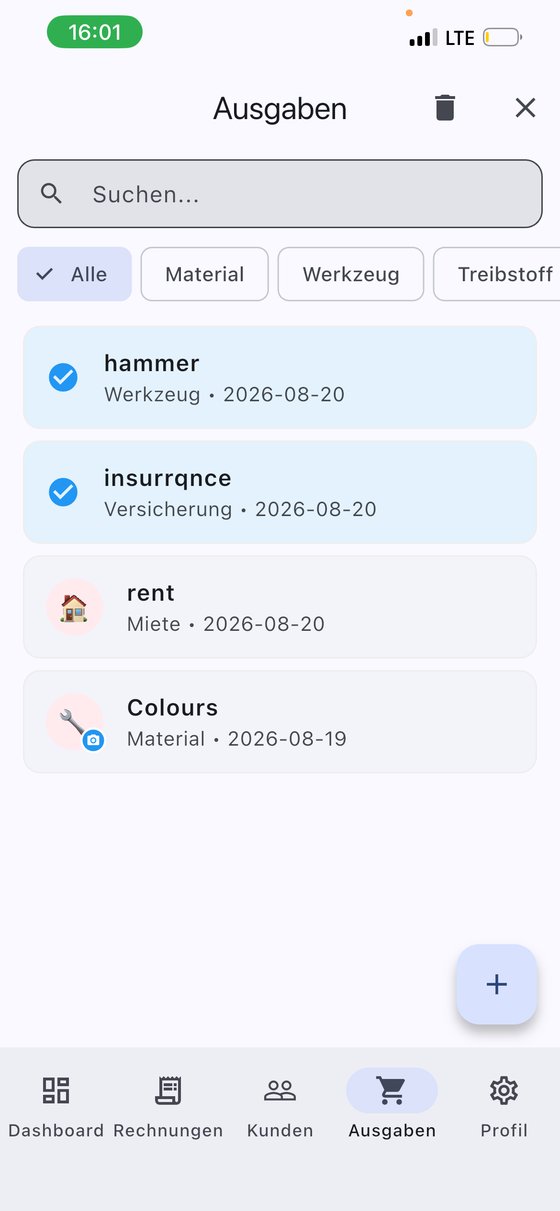
You can delete several expenses at once: use the selection at the top right, tick multiple entries, then tap the trash icon.
Searching & filtering
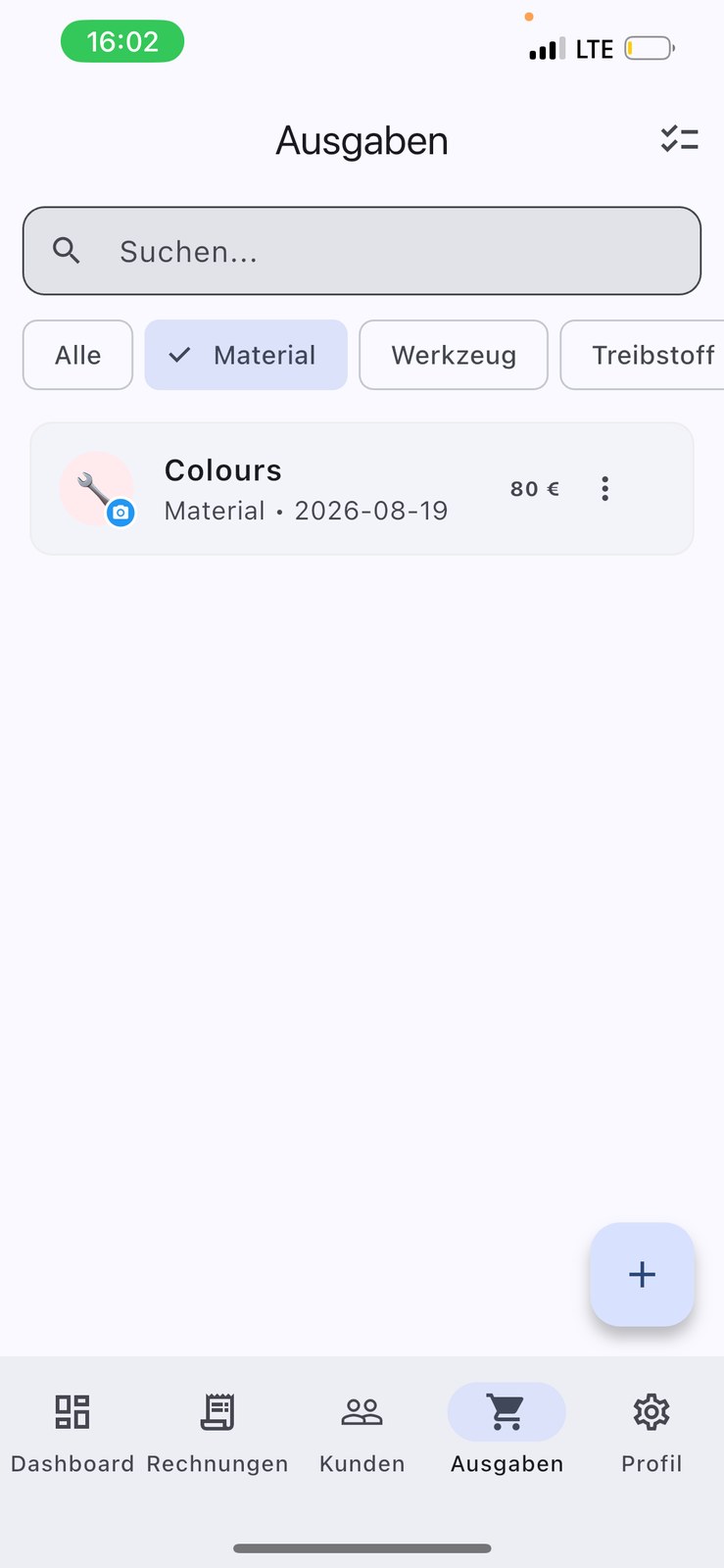
Use the search bar to find a specific expense, and filter the list by category.
12 Customers
Manage your customer list: import contacts, add customers manually, view their history, edit details and delete entries — all on your device, with GDPR-friendly consent tracking.
12.1 Adding a new customer
You have two ways to add a customer:
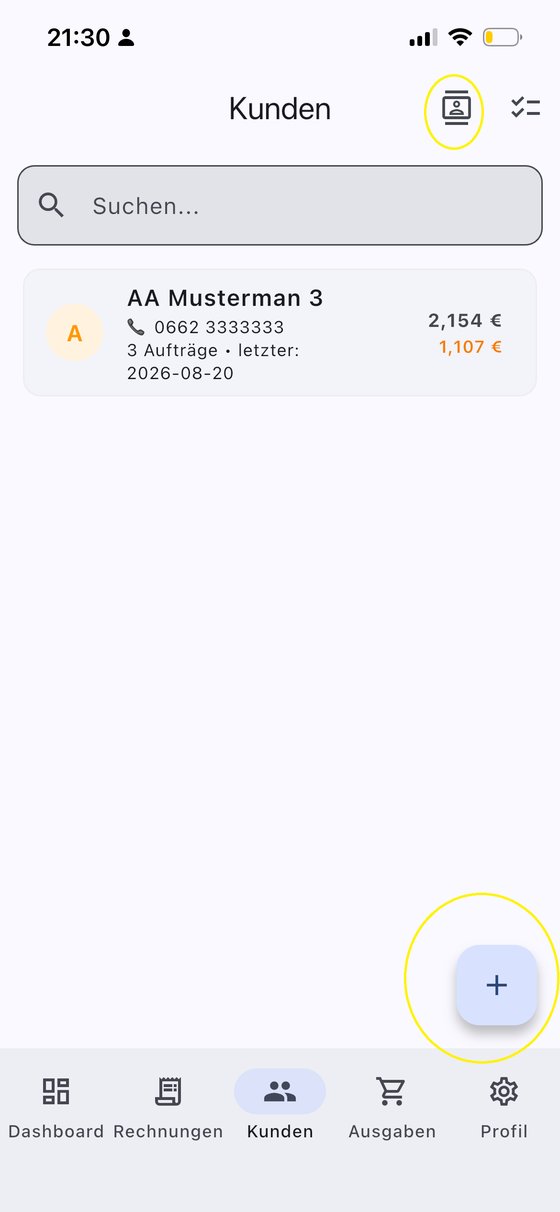
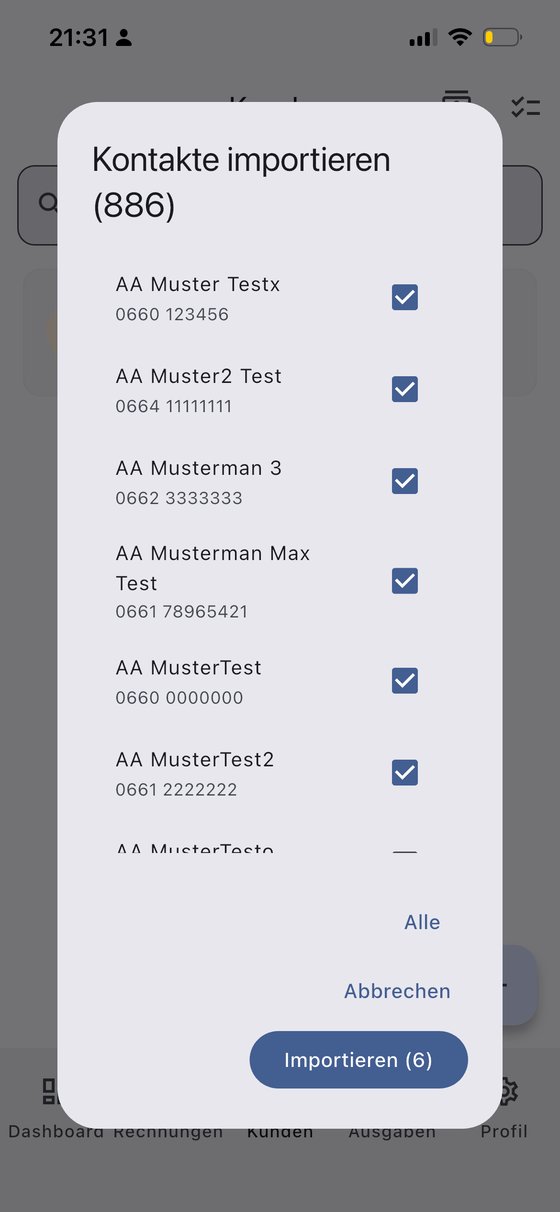
- Import from contacts — in the Customers view, tap the customer button in the top-right, allow contact access, select the contacts you want and import them.
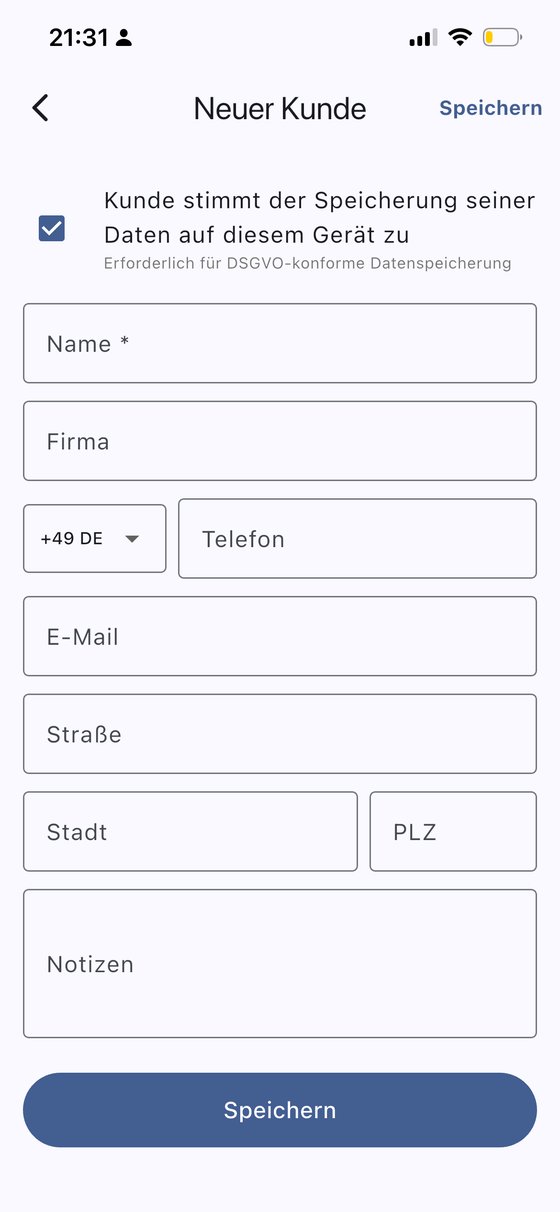
- Add manually with the + button — create a new customer with their name, phone, email, address and notes so the data is stored.
The customer must consent to data storage — the record is only created once the “Customer agrees to the storage of their data” checkbox is ticked.
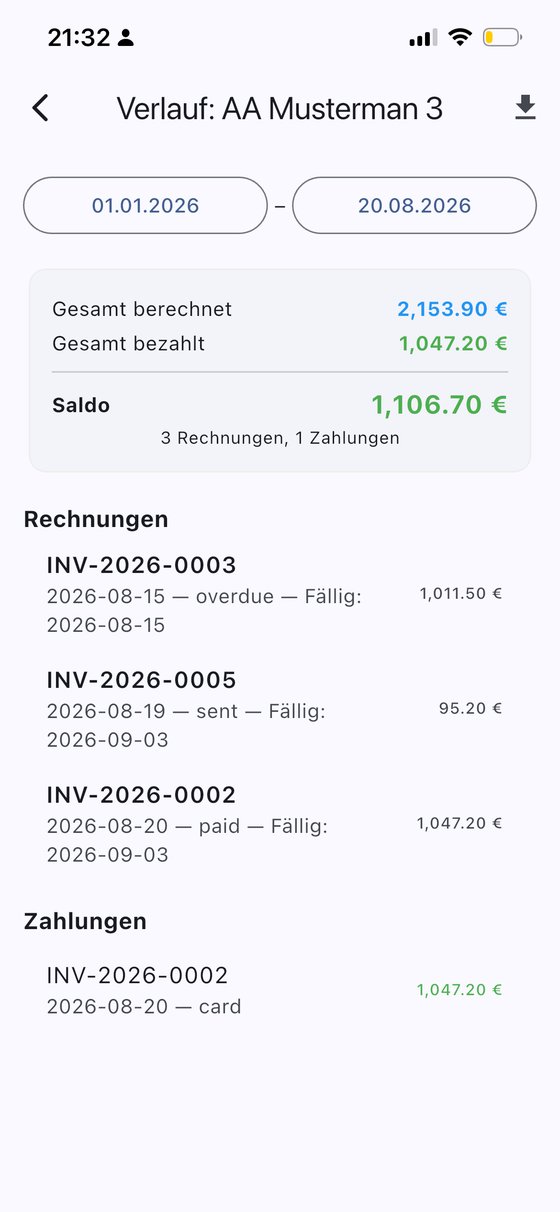
12.2 Customer history
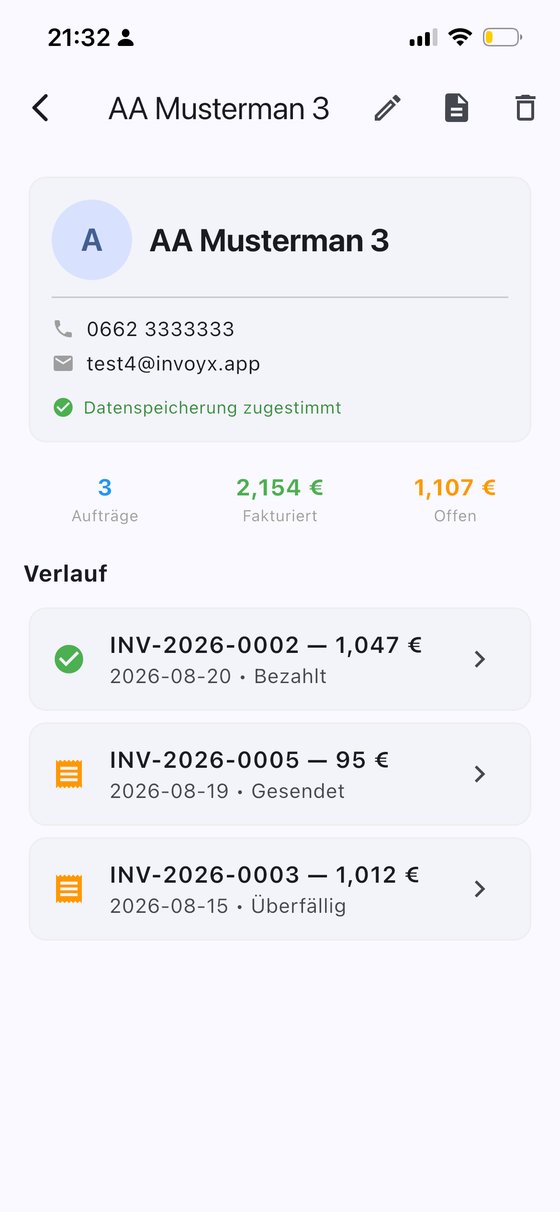
To see a customer's history, simply search for the contact and open the customer entry — the history appears there. For more detail, tap the info button at the top (between edit and delete). You'll then see the open items, paid invoices with dates and all the important information.
12.3 Editing customer details
You can change customer data anytime: open the customer area and tap edit.
12.4 Deleting customers
When you delete a customer, the invoices remain — but the customer is anonymised. There are two ways: select one or more customers in the customer view and tap delete — or tap delete in the top-right of the customer entry.
12.5 Searching customers
You can search for customers in the customer list at any time.
? Frequently asked questions
How do I create my first invoice?
Tap New Invoice, add a customer (or import one from your contacts), add your line items and save. Then share the PDF by email or WhatsApp — it's a ZUGFeRD/Factur-X hybrid that accounting software reads automatically.
Does my invoice show bank details for payment?
Yes. Once you enter your IBAN under Profile → Bank details, every invoice carries a payment QR code your customer can scan to pay instantly.
What is ZUGFeRD / Factur-X and why does it matter?
It's the standard for hybrid e-invoices: a normal PDF that also contains machine-readable data, so your customer's accounting software (DATEV, Lexoffice, SAP and more) imports it automatically.
Can I use InvoYX in my own language?
Yes — 27 languages, and the app language is independent from the invoice language. Use the app in your language, invoice in your customer's.
Where is my data stored and is it safe?
Only on your device. No cloud, no server, no account. Backups are AES-256 encrypted with your PIN, and the app itself can be PIN-locked.
How do I back up my invoices?
InvoYX reminds you daily. Go to Profile → Backup & Transfer to create, import or share an encrypted backup at any time.
How much does InvoYX cost?
InvoYX is free to try for 7 days with every feature unlocked. After the trial it costs €12.99 per month, and you can cancel anytime.
Do I need an internet connection or an account?
No. InvoYX works fully offline — no account, no registration, no cloud. Install the app and start invoicing immediately.
How do I transfer my data to a new phone?
Create an encrypted backup under Profile → Backup & Transfer, share it by email, WhatsApp or to a folder, then import it on your new device.
Can I create quotes, credit notes and vouchers too?
Yes. One editor handles invoices, quotes, credit notes and vouchers — and you can switch between document types without losing your data.
How does dunning (payment reminders) work?
Enable dunning in your profile and InvoYX tracks unpaid invoices across three reminder levels, each with its own due days and late fee. You always see which reminder was already sent.
Which accounting formats can I export?
DATEV (Germany & Austria), Bexio (Switzerland), UK HMRC MTD, US QuickBooks, Sweden SIE-4/Visma, Norway SAF-T and many more — plus ZUGFeRD/Factur-X e-invoices.
How do I add a customer?
Import customers from your contacts, or tap the + button in the Customers view to create a new customer with name, phone, email, address and notes. The customer must consent to data storage.
What happens to my invoices when I delete a customer?
Your invoices stay fully intact — the customer is simply anonymised, so no personal data remains on the document.
Where do I find a customer's history?
Search for the contact and open the customer entry. There you see the history; tap the info button at the top for open and paid invoices with dates.